happiergym

What’s new

Fixed

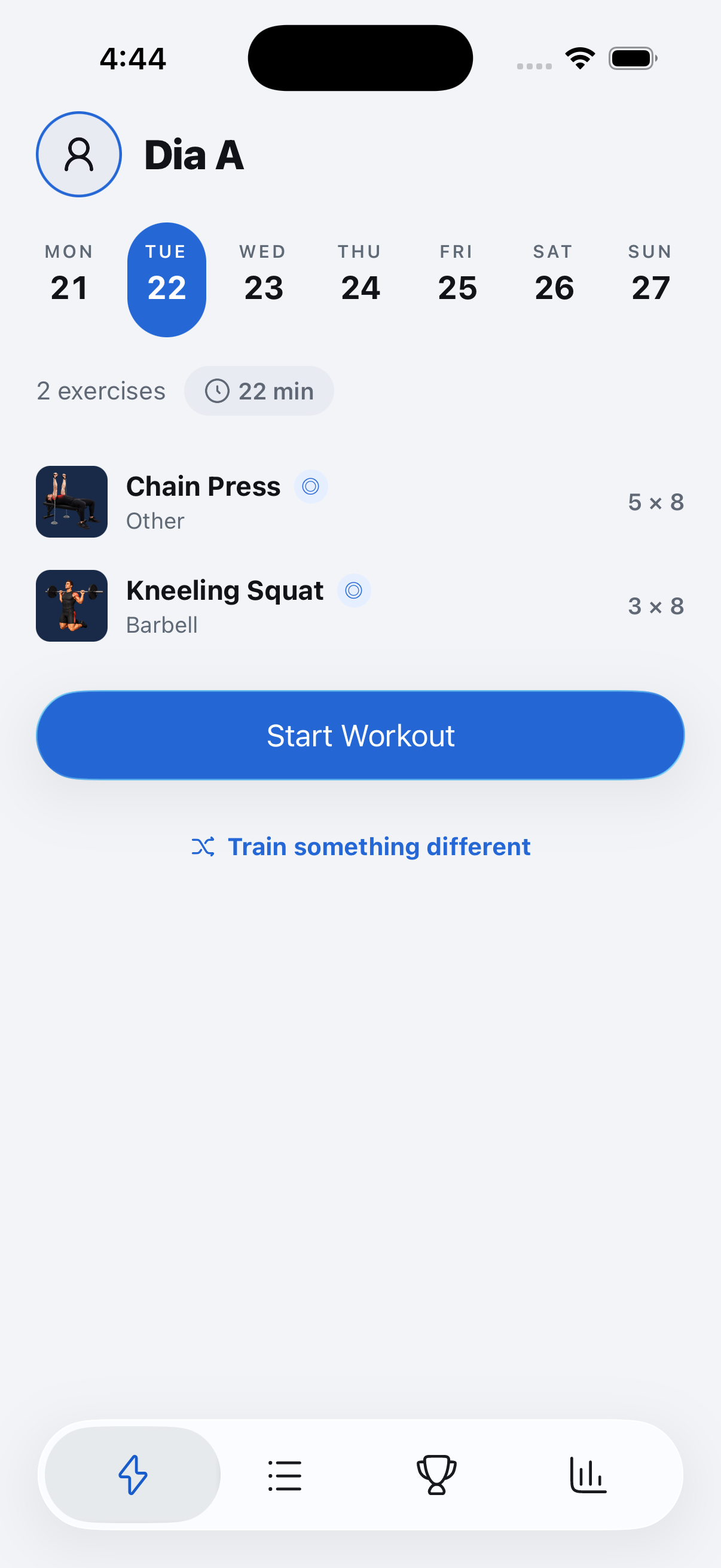
Your cardio sits with your exercises

On Today, the cardio your routine adds after a workout is now part of the exercise list.

Fixed

  • Today: The cardio after your workout is now the last row of the exercise list, with its picture and minutes, like your exercises. It used to be a separate card below the list.

Where to find it: Open Today on a day with cardio after the workout.

Fixed

Updates on your terms

The update message has a Later button, and Settings can check for updates.

Fixed

  • Updates: The message that a new update is ready now has a Later button. The update still applies on its own the next time you leave the app.
  • Settings: Check for updates shows your version and gets the newest update when you tap it.

Where to find it: Open Settings and tap Check for updates.

Fixed

Cardio notifications and effort scale

Two small fixes for cardio and effort ratings.

Fixed

  • Challenge notifications now say a friend finished a cardio session instead of a workout.
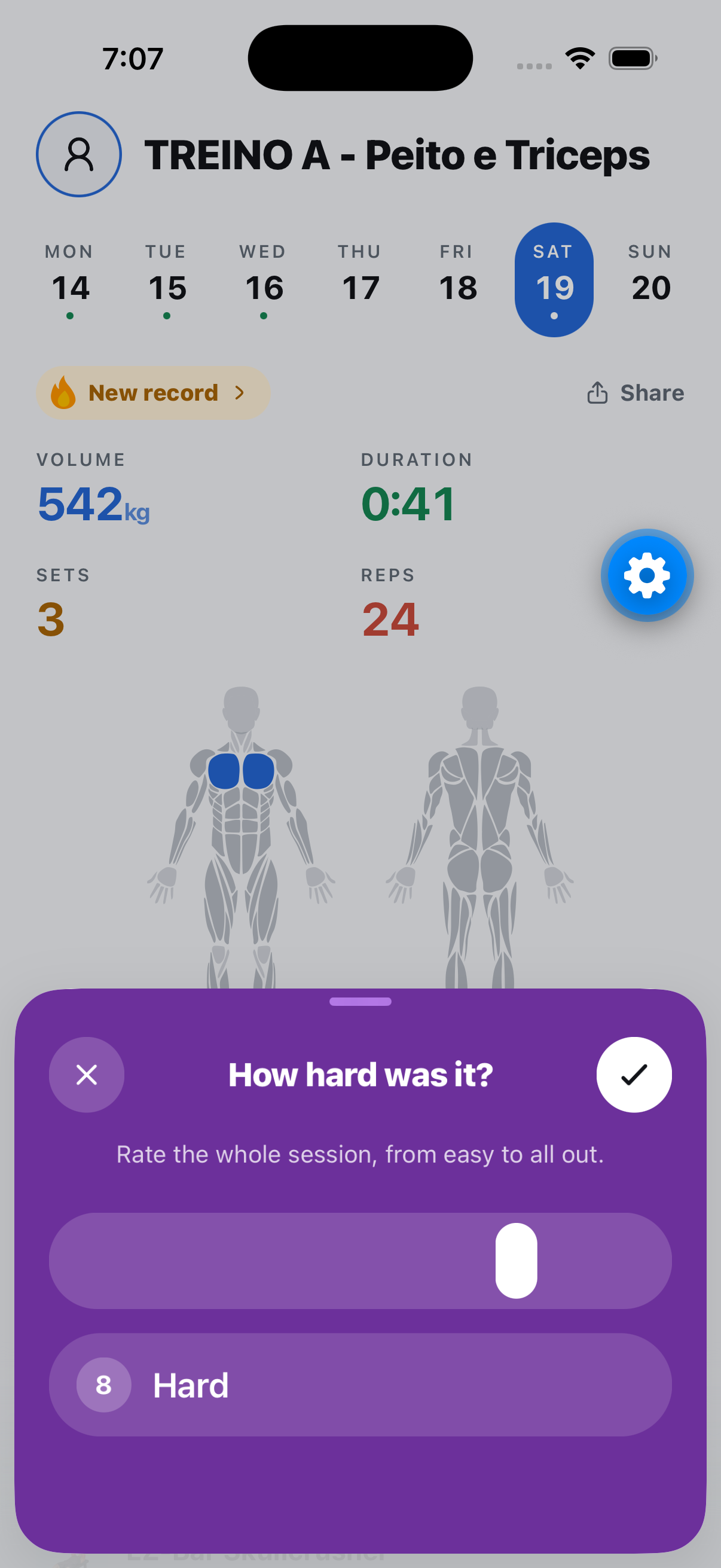
  • The effort scale shows its slider at the start, so it's clear you can drag it.

Where to find it: Finish a session and rate your effort.

Fixed

Coach warnings scroll again

When your coach flags several exercises, you can reach every warning before saving.

Fixed

  • Movement warnings: With more than a few warnings, the list opened cut off at the top and bottom and would not scroll, so some warnings could not be swapped or acknowledged. It now scrolls to the last one.

Where to find it: Open Routines, tap Build with your coach, and tap the warnings card above your days.

Fixed

Good Morning off Pins illustration fixed

The bar now sits where it should in the Good Morning off Pins illustration.

Fixed

  • Good Morning off Pins: The bar looked like it went through the body. It now rests on the upper back, from leaving the pins to standing up.

Where to find it: Open Good Morning off Pins to see the new illustration.

Fixed

Clearer guides in What’s new

Release screenshots have new handwritten labels and arrows.

Fixed

  • Labels, arrows and circles now use the same black handwritten style.
  • Arrowheads stop outside the highlighted controls.

Where to find it: Open Settings → What’s new.

Fixed

Clearer exercise illustrations

Updated illustrations show exercise positions and equipment more clearly.

Fixed

  • Corrected 140 exercise illustrations, including cable movements, bench exercises and machines.
  • Updated 16 cardio and sport illustrations, including the stair machine, rowing and skating.

Where to find it: Open an exercise or activity to see its illustration.

Fixed

Save today's coach session for later

A session your coach builds for today no longer has to start right away.

Fixed

  • One-off sessions: When your coach builds a session for today, tap Save for later. Today switches to that session, and you start it whenever you are ready.
  • One-off session cards show a single rep target as 3×10 instead of 3×10⁻¹⁰.

Where to find it: On Today, tap Train something different and let your coach choose, or use the one-off session button at the top of Routines.

New in happiergym

Manage challenge entries

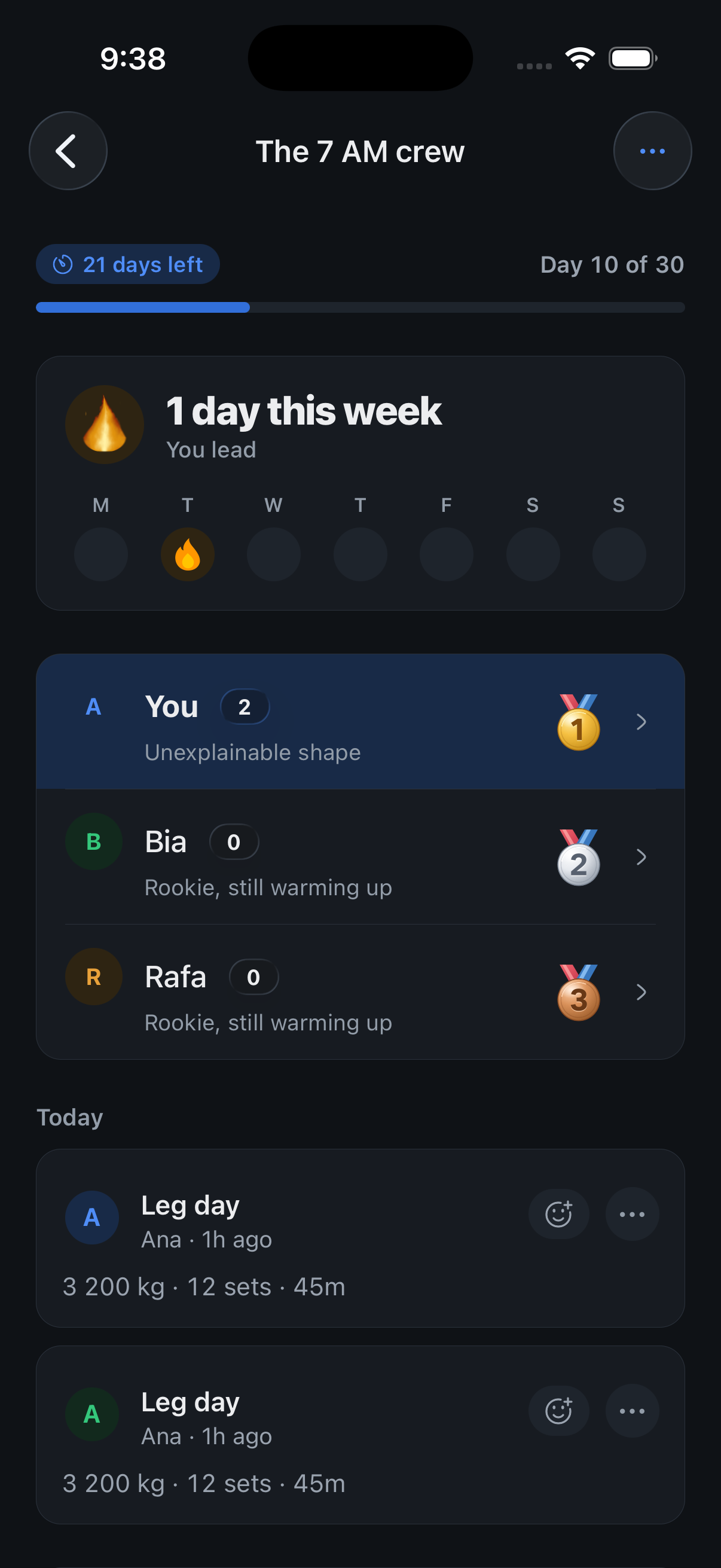
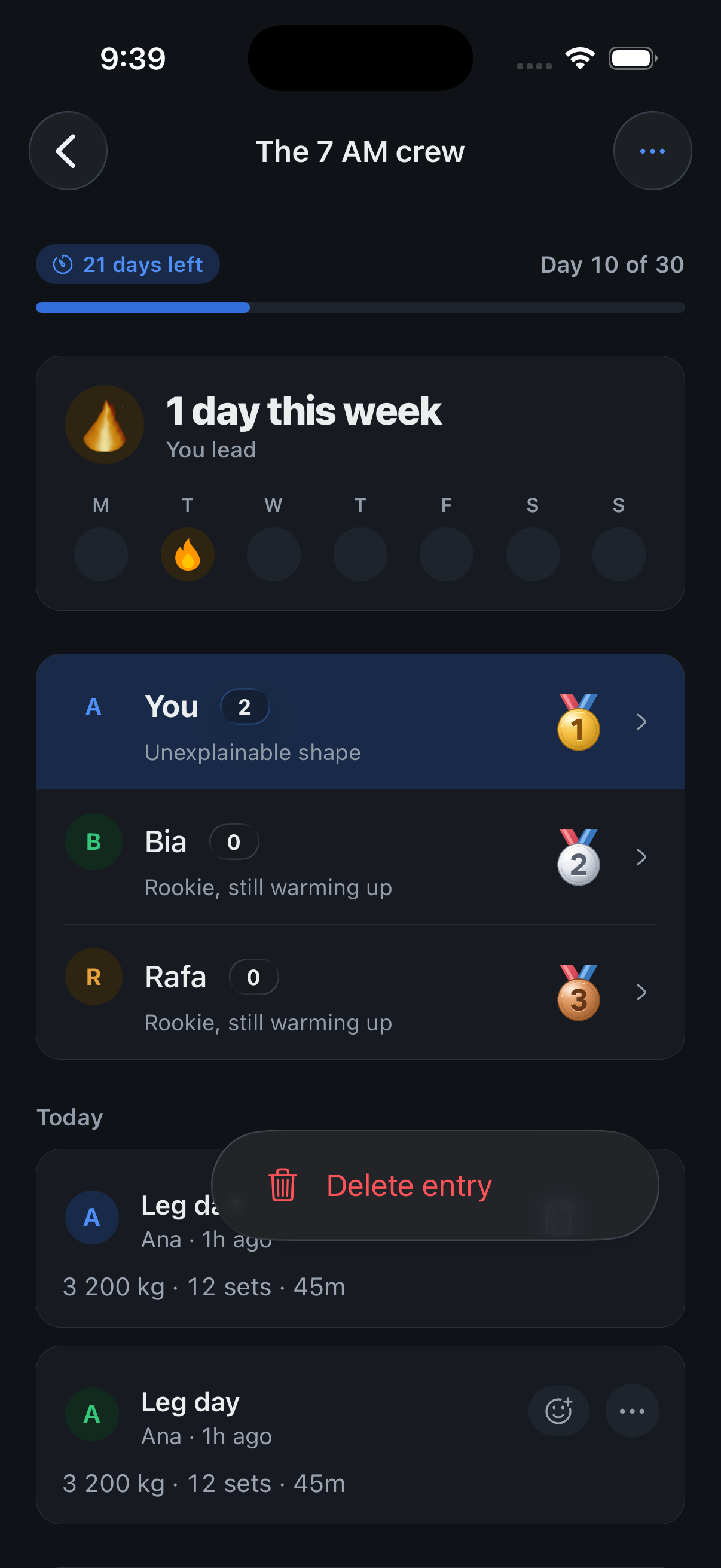
Challenge creators can delete duplicate or invalid entries while the challenge is running.

Screenshots use fictional demo data.

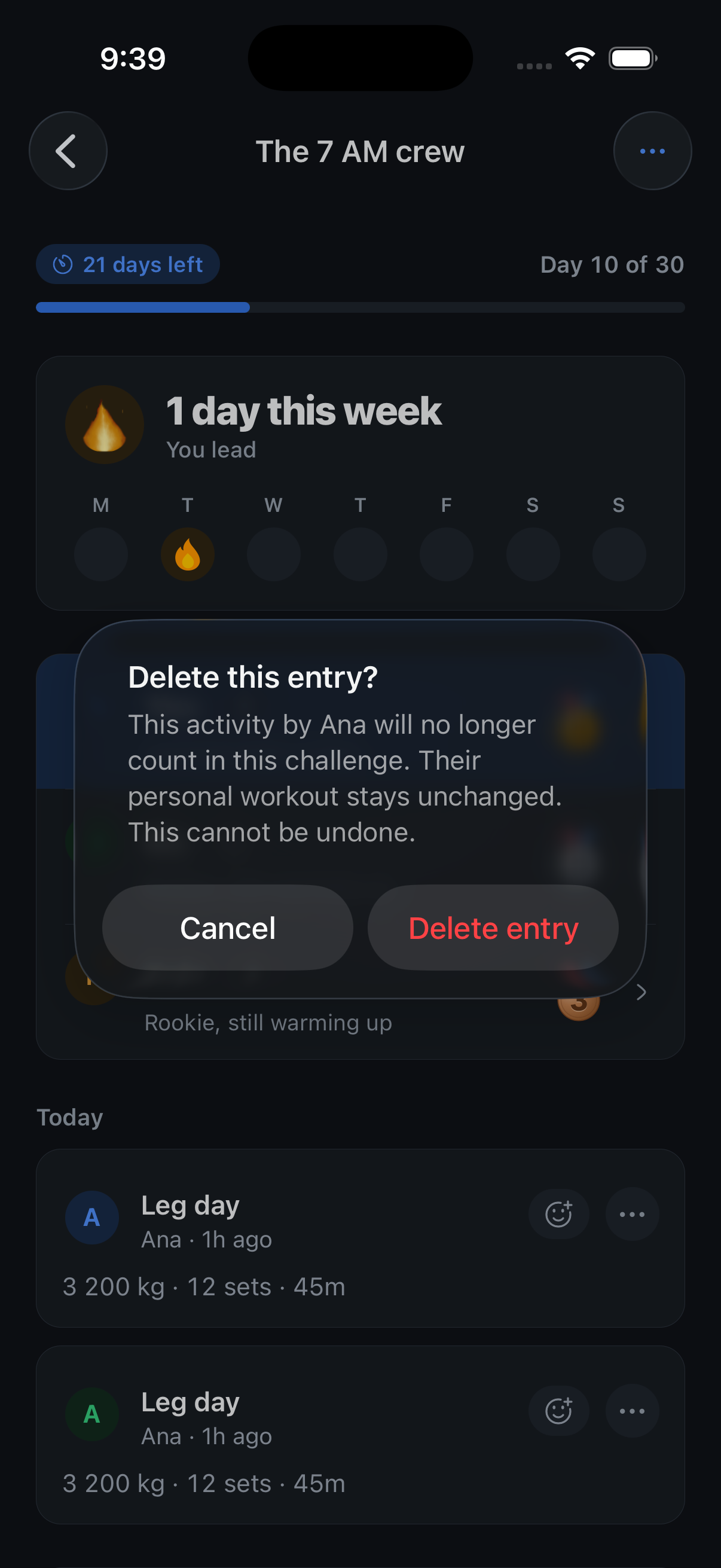
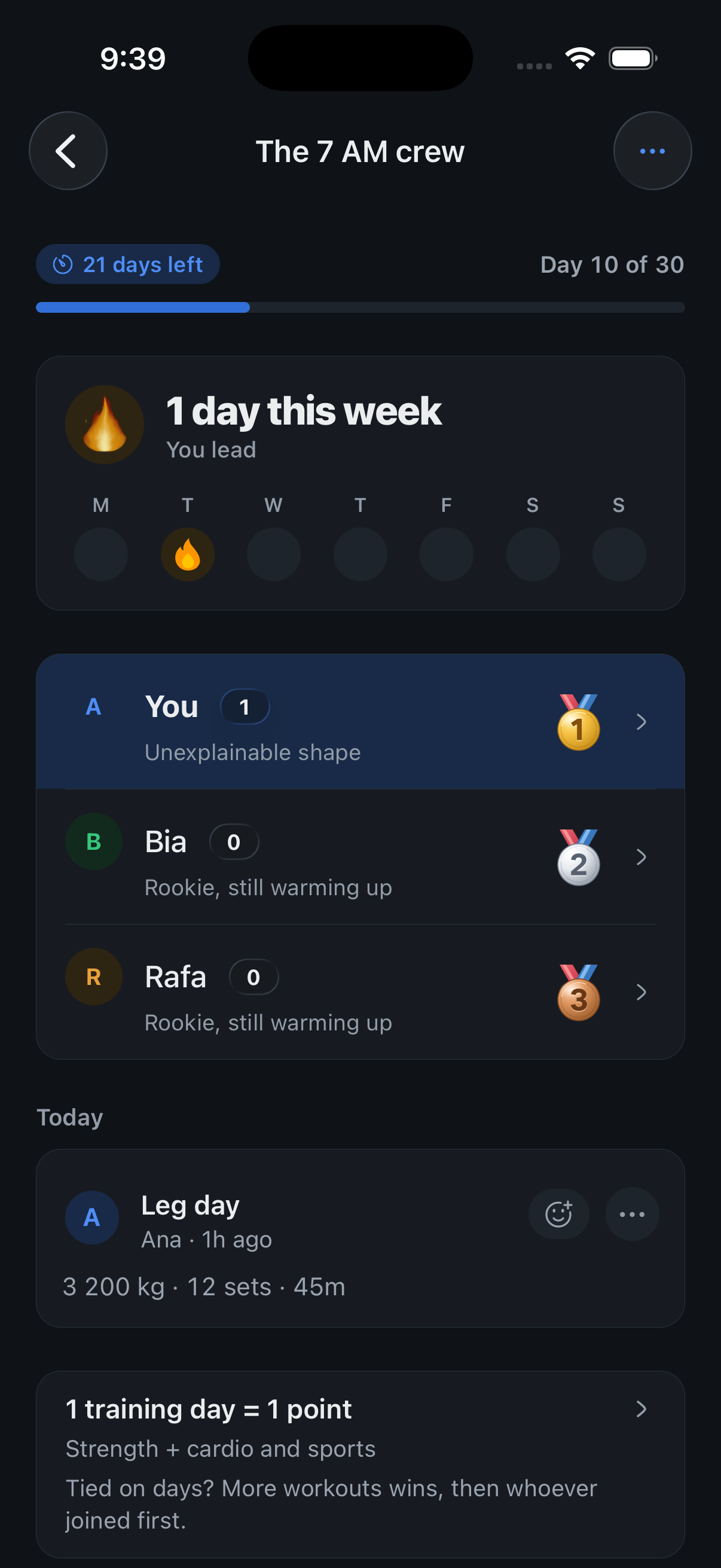
  • Open an activity’s three-dot menu and choose Delete entry. After you confirm, it stops counting in that challenge and the ranking updates.
  • Personal workouts stay saved. Deleted entries cannot return through sync. Ended challenges stay read-only.

Where to find it: Open a challenge you created and tap the three dots beside an activity.

Fixed

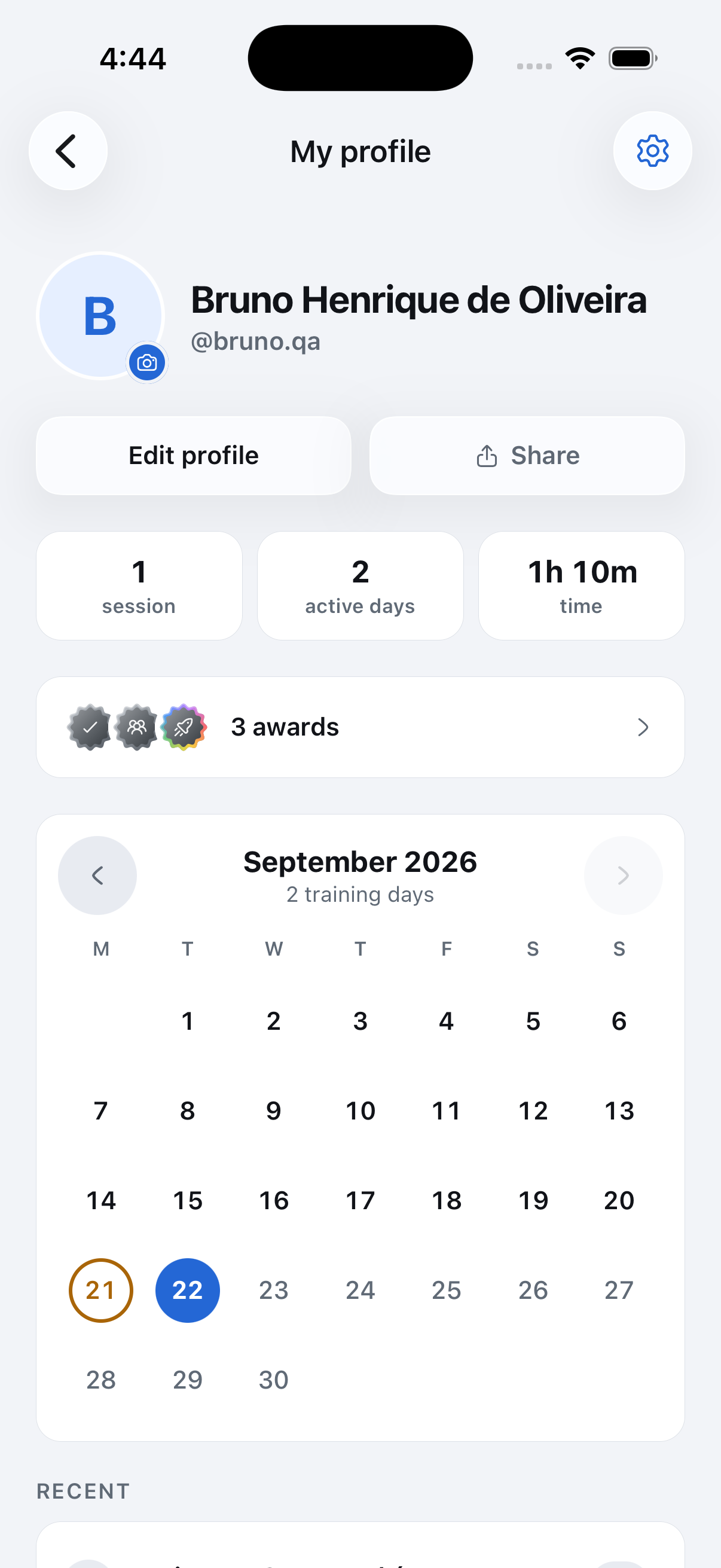
Your profile, from the picture on Hoje

The picture in the corner of Hoje opens your profile instead of Settings, and Settings moves to the gear in the profile header.

Fixed

  • Your profile from Hoje: The picture in the top-left corner opened Settings, so nothing in the app led to your own profile. It opens the profile now, and Settings sits behind the gear in that page’s header.
  • Counts that read right: The profile said "1 Sessions" and "1 Active days". One session reads as one session now, and the total time carries its own unit instead of hiding it in the label.
  • Links that preview: Sharing a profile, a routine or a challenge hands the link to iOS as a link, so Messages and WhatsApp show a preview card instead of a bare line of text. A challenge invite also carries who sent it.
  • Shared links open something: A profile or challenge link used to lead nowhere for anyone without the app, and to a blank page on a computer. It now opens a page with the name, the picture and a way to get the app, and the preview card in WhatsApp shows whose profile or which challenge it is.

Where to find it: Tap your picture in the top-left corner of Hoje.

New in happiergym

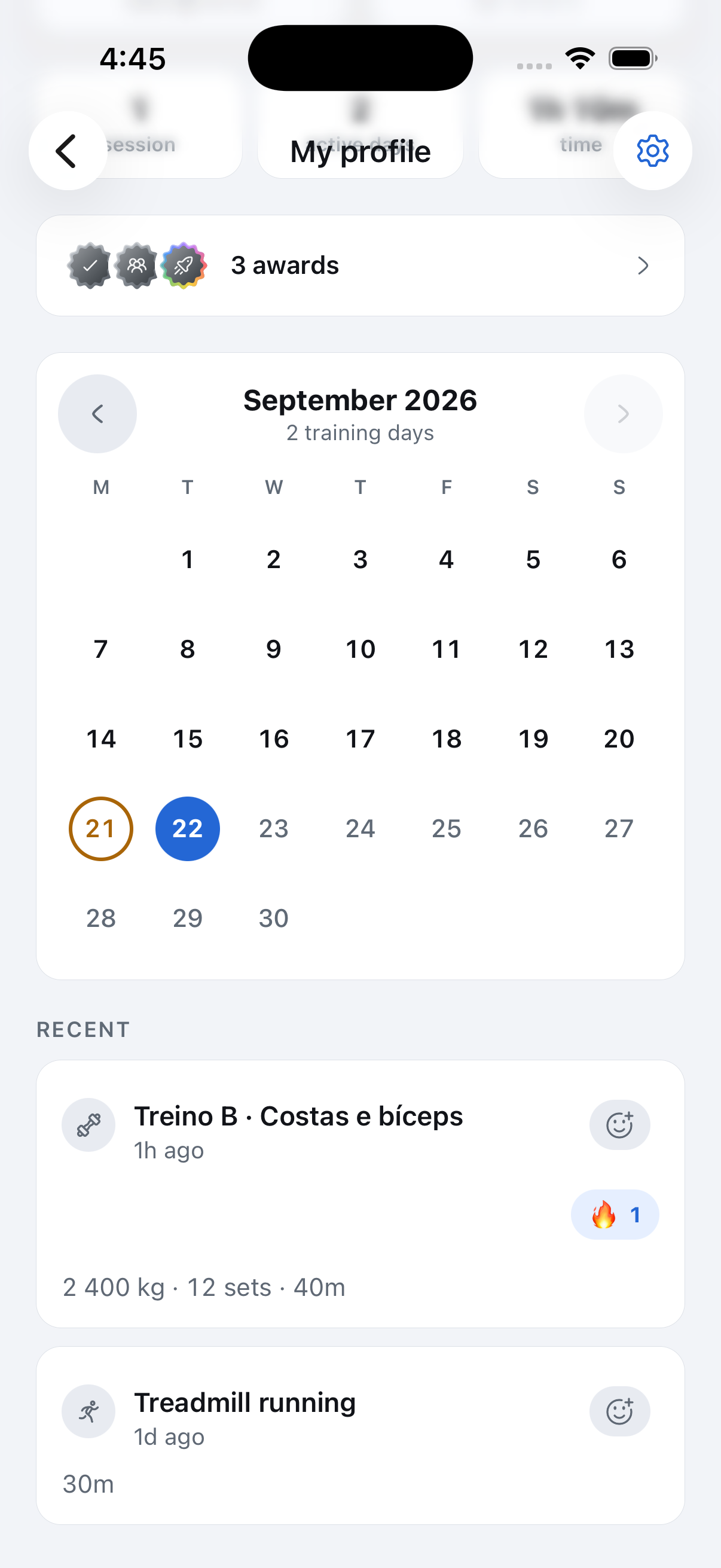
Recent training on your profile

Your name sits beside your picture, with the calendar above recent activity.

Screenshots use fictional demo data.

  • See the latest activity: Your profile shows five recent items. Open a session to see its details.
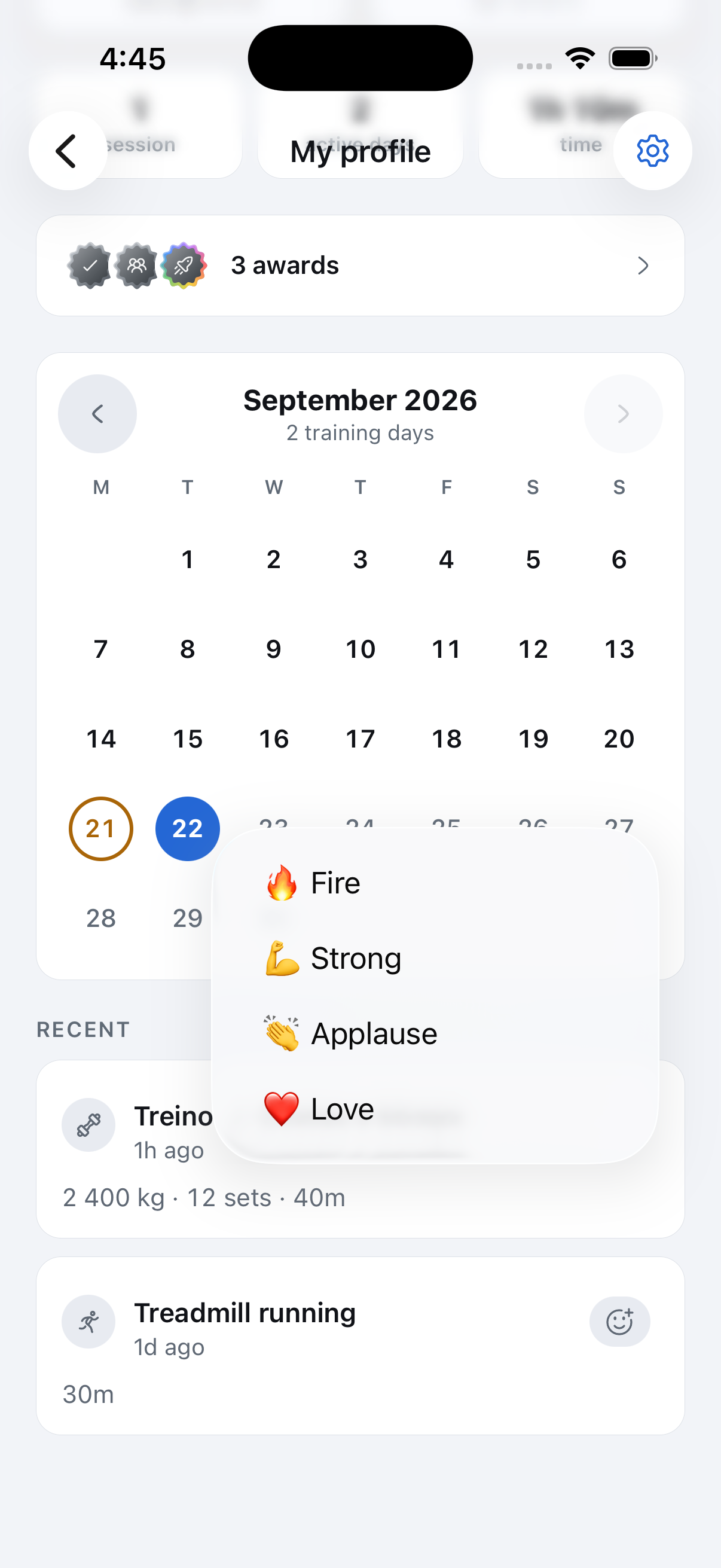
  • React without the clutter: A reaction icon beside each title opens the emoji dropdown. The icon and title align at the top, with the time below. Choosing a reaction drops that emoji across the screen. Existing reactions stay visible with counts, and yours is highlighted.
  • Edit and share: Profile buttons match the rounded cards and use Liquid Glass on supported iPhones.
  • Open your achievements: Overlapping medals and the total sit together in one compact row.
  • Browse the month: The full calendar sits above recent activity and still lets you move between months.
  • Read simpler cards: Activity cards on a profile show the workout or achievement without repeating the person’s name and picture.

Fixed

  • The calendar keeps all seven days in each week, with Sundays in the correct column.

Where to find it: Tap your picture in the top-left corner of Today to open your profile.

Fixed

Matching activity cards across the app

Challenge and friends activity now uses the same card layout as profiles.

Fixed

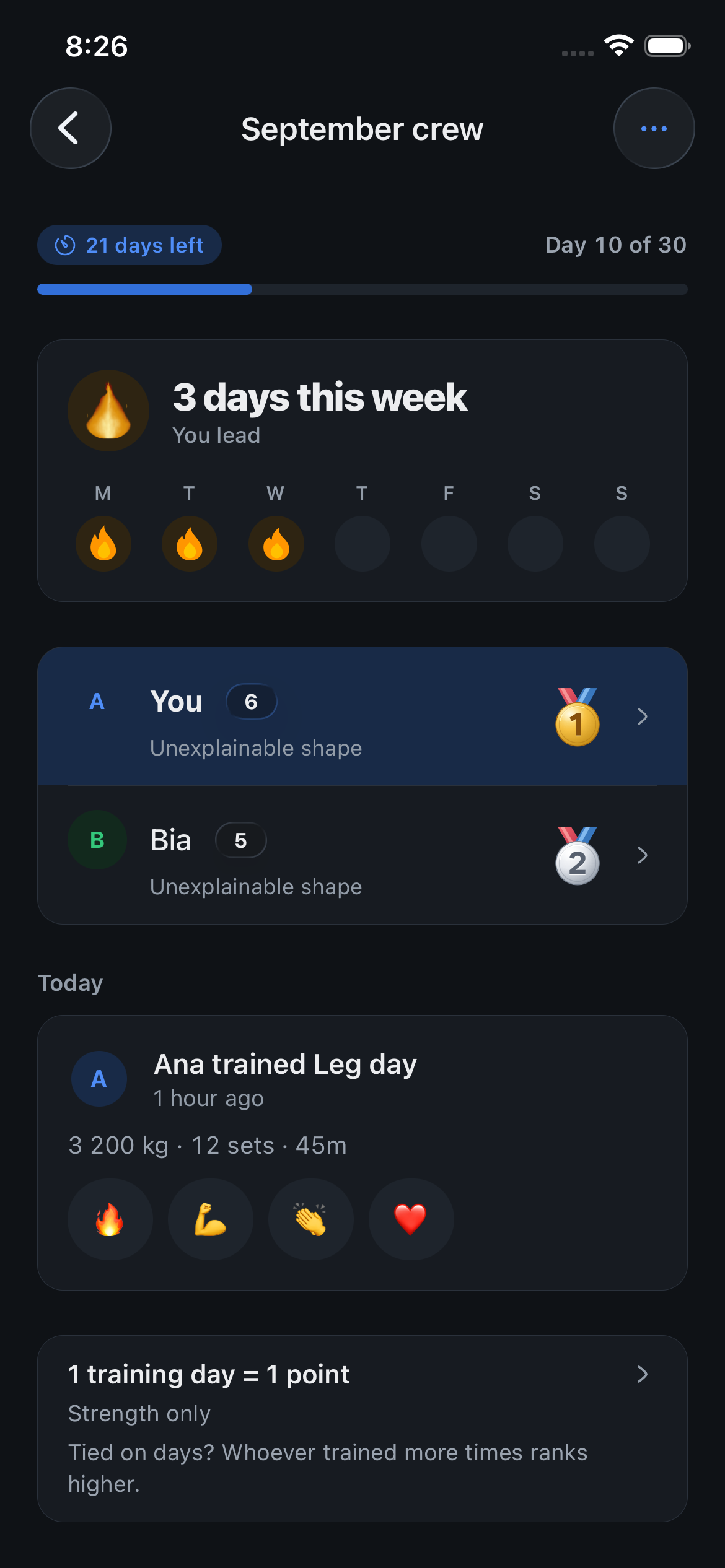
  • Challenge ties now rank whoever joined first higher when training days and workout counts are equal.
  • Activity cards in challenges and the friends feed now share the profile layout: a single-line title, time below, a compact horizontal emoji-only reaction dropdown on the side and falling reaction emojis. The member’s name and profile picture stay visible.
  • Received reaction counts sit side by side below the activity details. Only the reaction dropdown stays beside the title, leaving more room for the activity name. A clearer label below the reactions identifies who reacted.
  • Cardio names are translated by the shared card in every activity feed.
  • Loading placeholders now match profile and activity layouts. Exercise names use the available translation consistently across workouts, history, templates and widgets.

Where to find it: Open a challenge and scroll to its activity.

Fixed

Back works on the coach’s first question

Leaving the routine builder from its first question does something again.

Fixed

  • Build with the Coach: On the first question, “Do you already have a training sheet?”, the Back button did nothing and the swipe back was off, so the only way out was the More menu. The native back button is there now and leaves the page; from the second question on, Back returns to the previous question as before.

Where to find it: Open Routines, tap Build with the Coach, then tap the back chevron.

Fixed

A drop set counts as one set

The Lock Screen and the Watch no longer count each drop as a set of its own.

Fixed

  • Set count with drops: An exercise of 3 sets with two drops on the last one showed as 5 sets on the Lock Screen and as five bars on the Watch. A set and its drops are one set now, as the exercise card lists them.

Where to find it: Start a session with a drop set and look at the Lock Screen.

New in happiergym

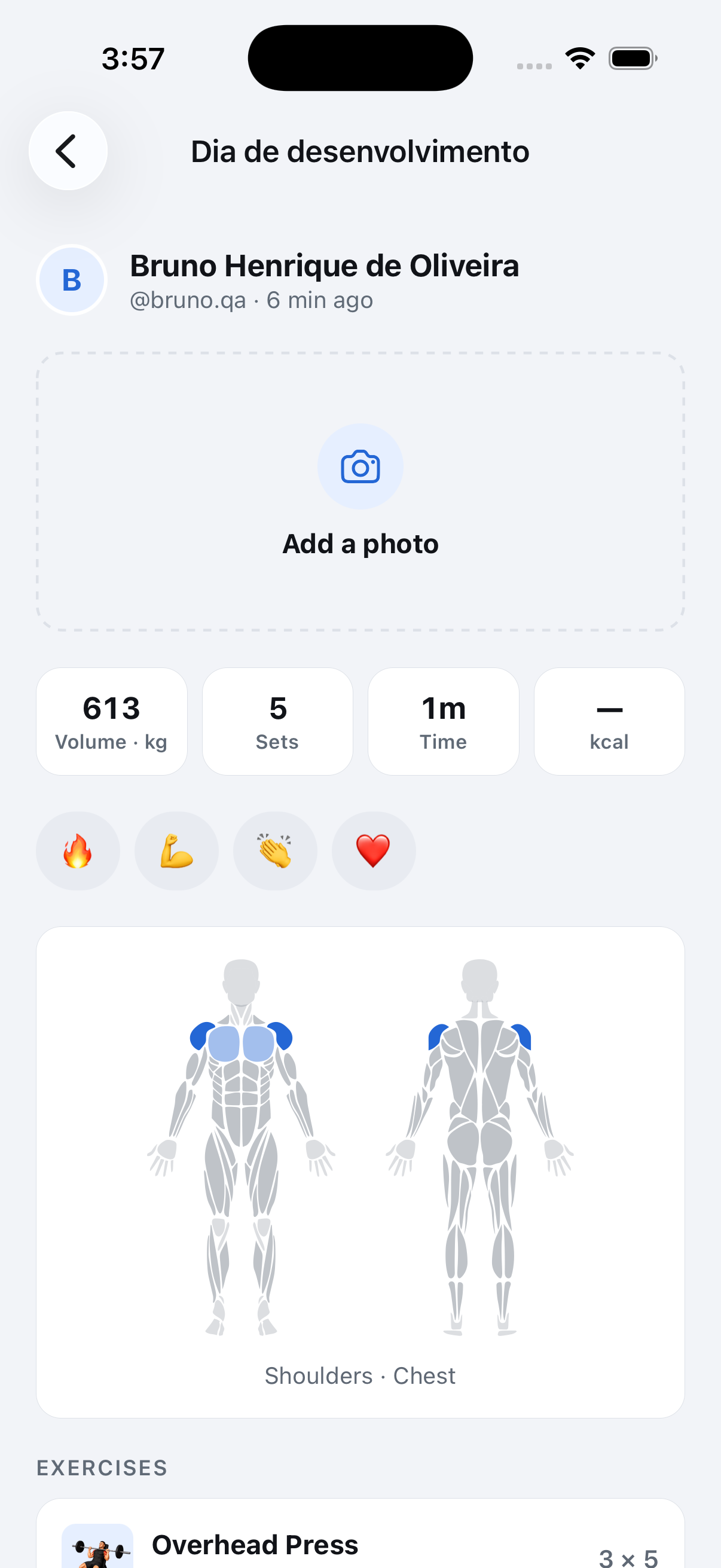
Add the photo later

Skipped the photo when you finished? Open the session and add it from there. Change or remove it from the same page.

The tile sits where the photo will go
Your own session page without a photo: the profile row, then a dashed tile with a camera icon reading Add a photo, then the four numbers.Tap here to add one
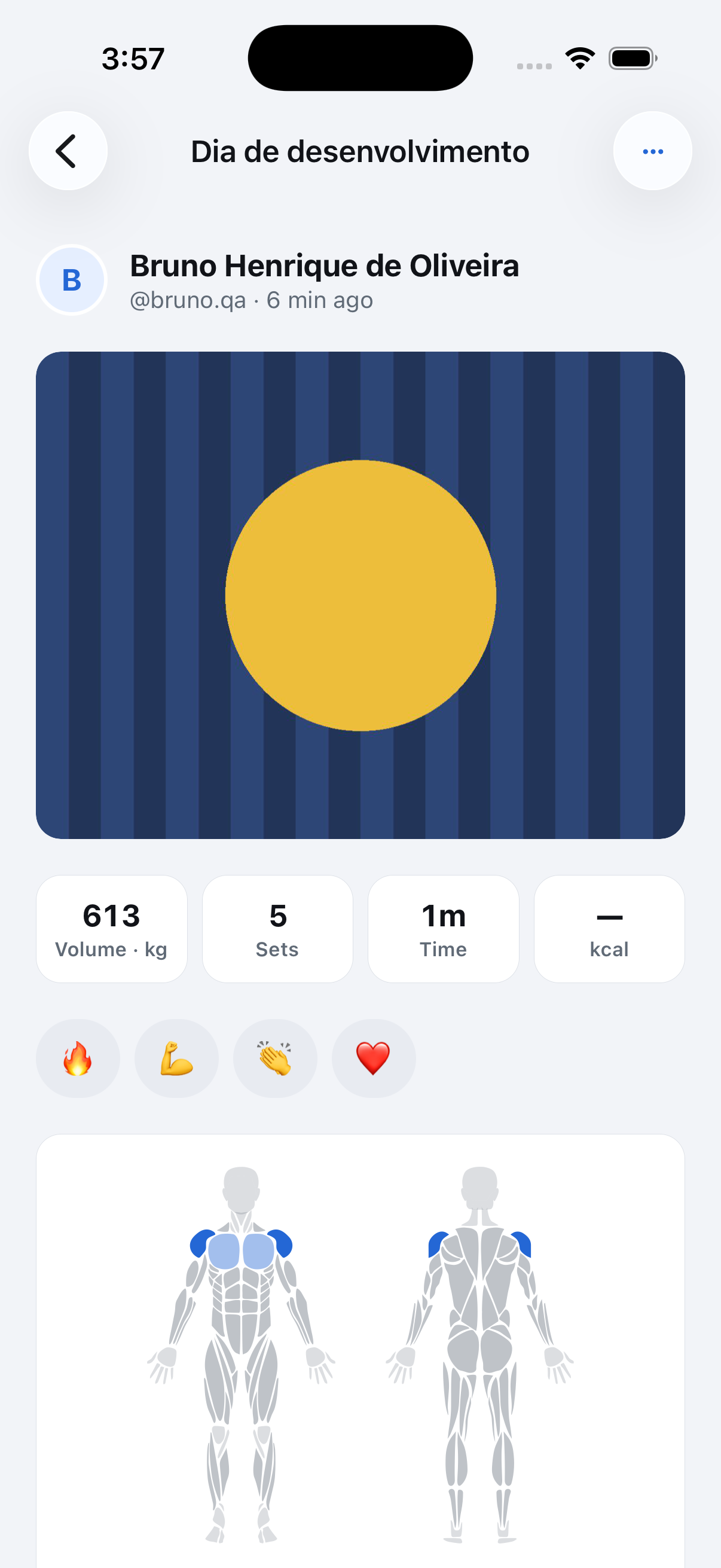
The photo on the session
The session page with the picked picture in the photo slot and a ⋯ button in the header.
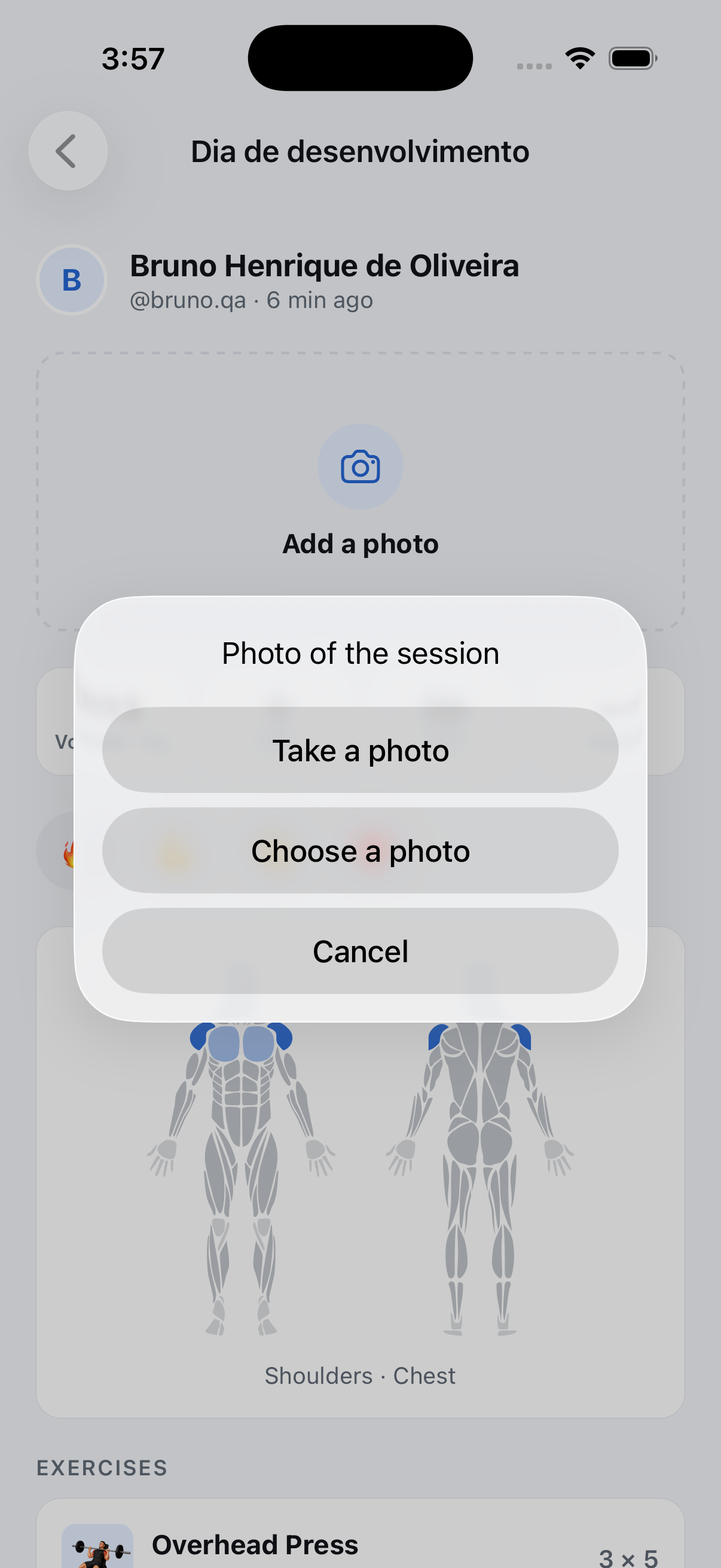
Camera or library
The Photo of the session sheet over the page: Take a photo, Choose a photo, Cancel.
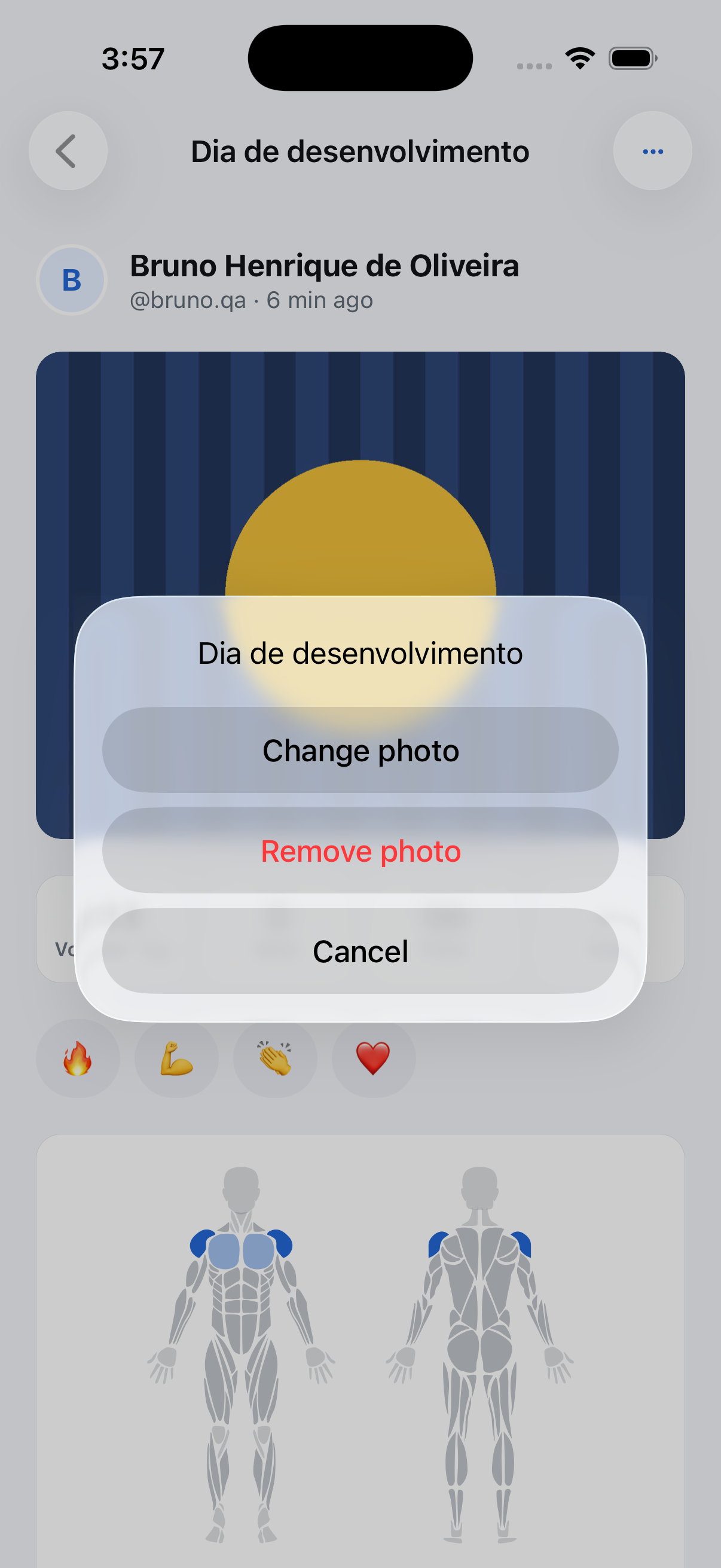
Change or remove it later
The ⋯ menu over the session: Change photo, Remove photo, Cancel.

Screenshots use fictional demo data.

  • Add it from the session: Friends tab, open one of your sessions, and the dashed tile where the photo would be reads Add a photo. Camera or library, the same square crop as at the finish, and it shows for the people who follow you and in your challenges.
  • Change or remove it: With a photo in place, ⋯ in the header offers Change photo and Remove photo. Removing asks first.
  • One photo everywhere: The finish screen, the session page and the feed card show the same picture, so adding it on one side updates the others.

Where to find it: Friends tab, open one of your sessions, tap Add a photo.

Fixed

Coach reviews stop failing over a citation

A review that quoted its own evidence was thrown away as invented; it is accepted now, and slow answers get more time.

Fixed

  • Coach review: Asking for a review often ended in “Your coach could not finish the review” after a long wait. The check that stops the coach from inventing numbers also rejected the years of the studies it cites, the 28-day window and your session dates, so most of the suggestions were dropped and the review failed. Those figures count as evidence now.
  • Coach review: Each answer gets 40 seconds instead of 20, so a slower answer is read instead of discarded and retried with another model.
  • Today: The “Train something different” sheet uses the same option cards as the rest of the app.

Where to find it: Open a routine and tap Ask for a review.

New in happiergym

Cardio inside your workout

Add a bike, a run or a jump rope at any point of a strength session. Time it, done.

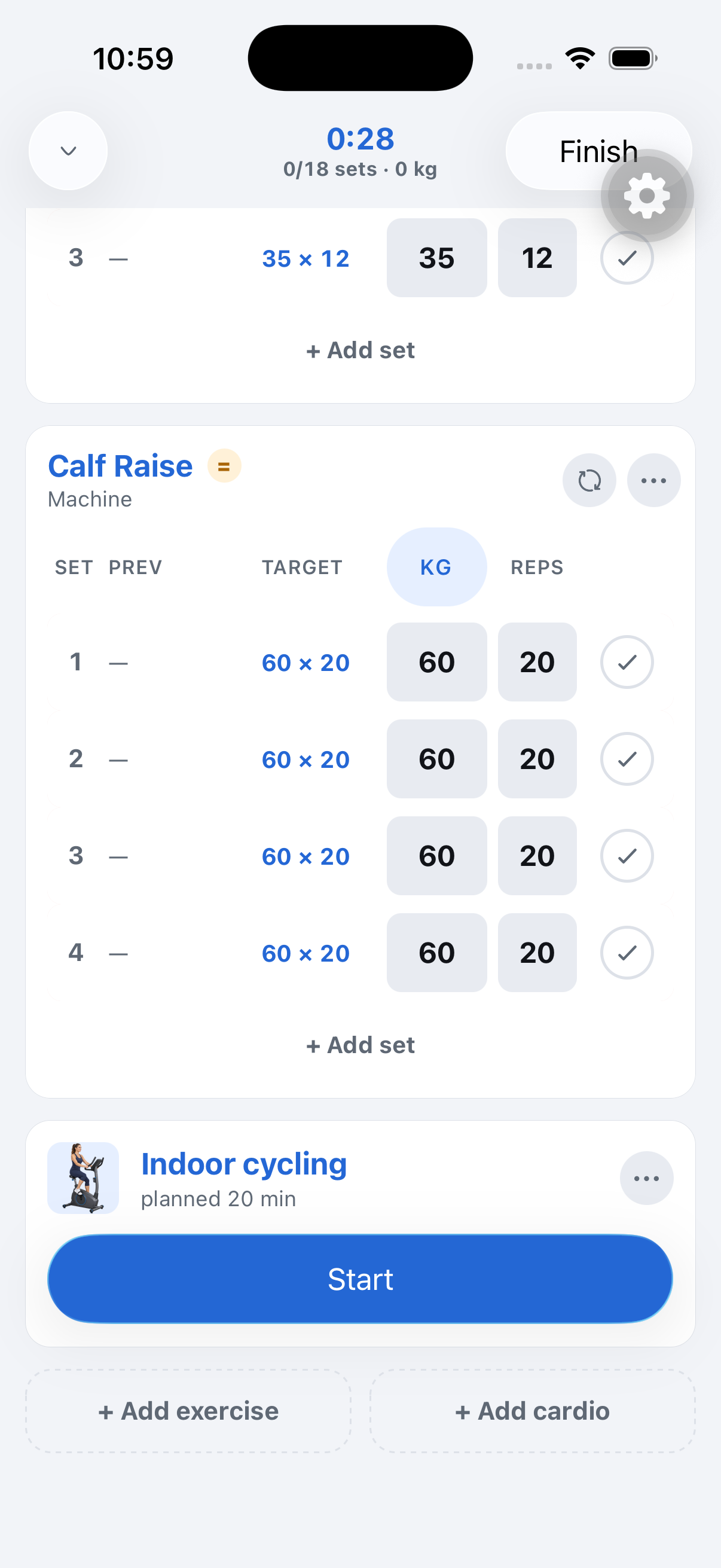
Add cardio sits next to Add exercise
The workout list scrolled to its footer: Calf Raise, the planned Indoor cycling block with a Start button, and the two controls Add exercise and Add cardio.Tap Add cardio
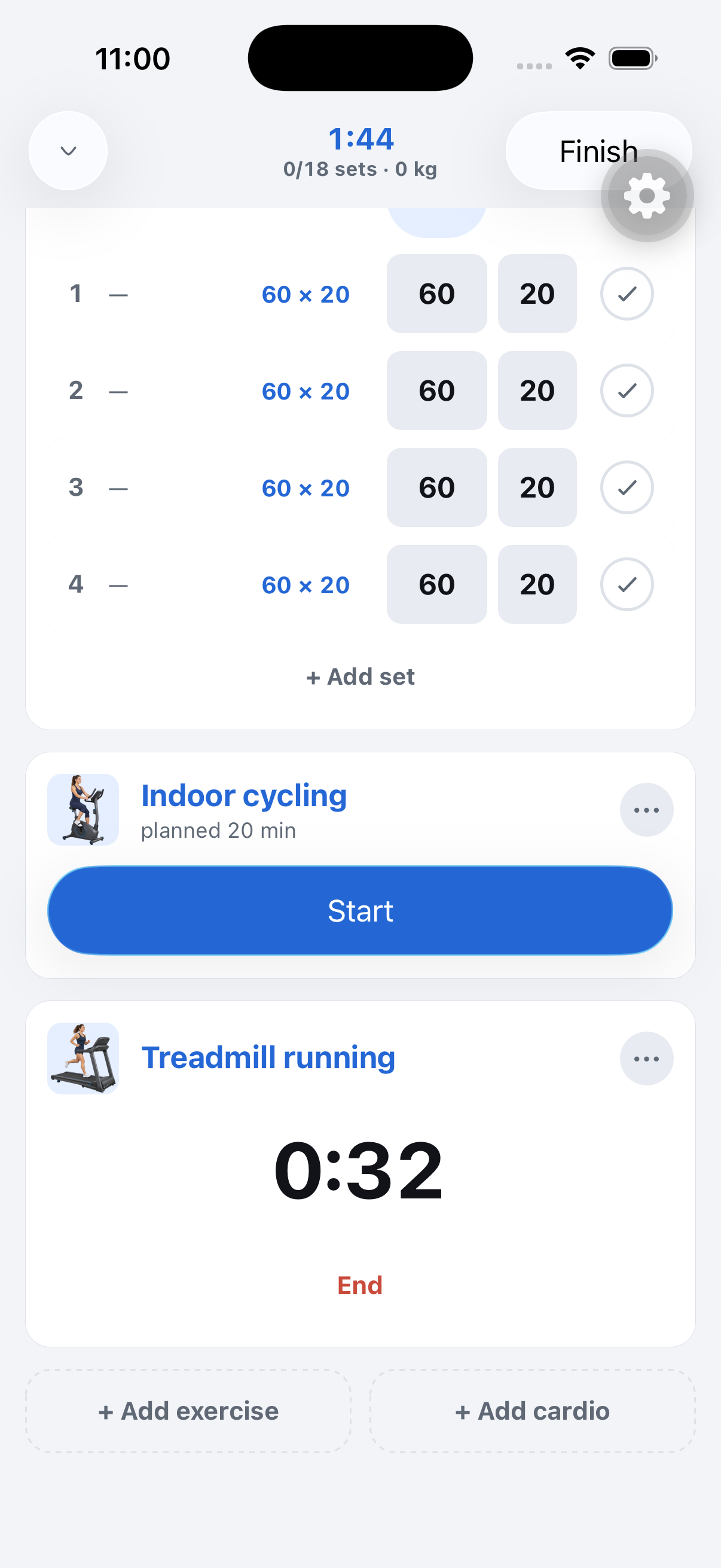
The block counts up in the session
The session with the planned Indoor cycling block and, under it, Treadmill running counting 0:28 with an End button.
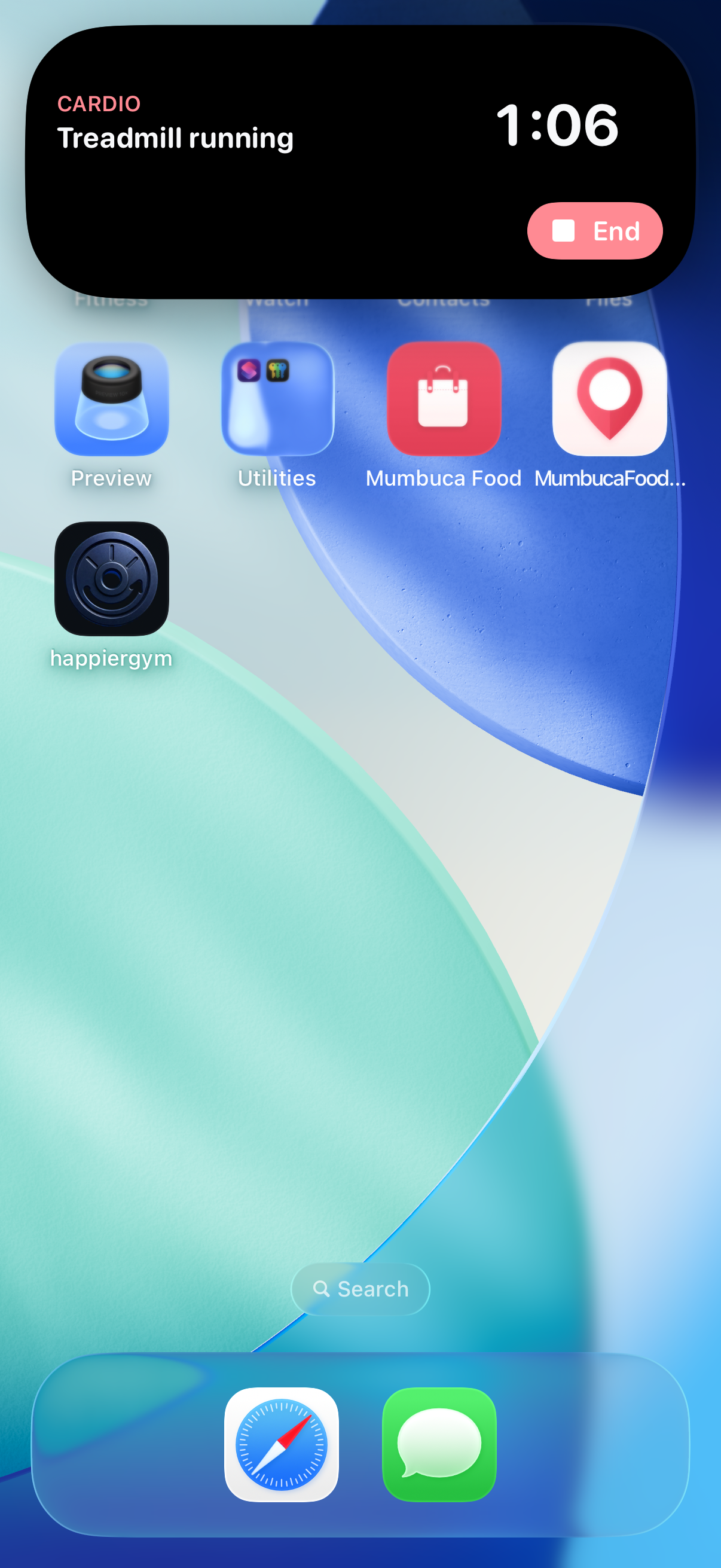
Same clock on the island
The expanded Dynamic Island: CARDIO, Treadmill running, 1:02 and an End button.
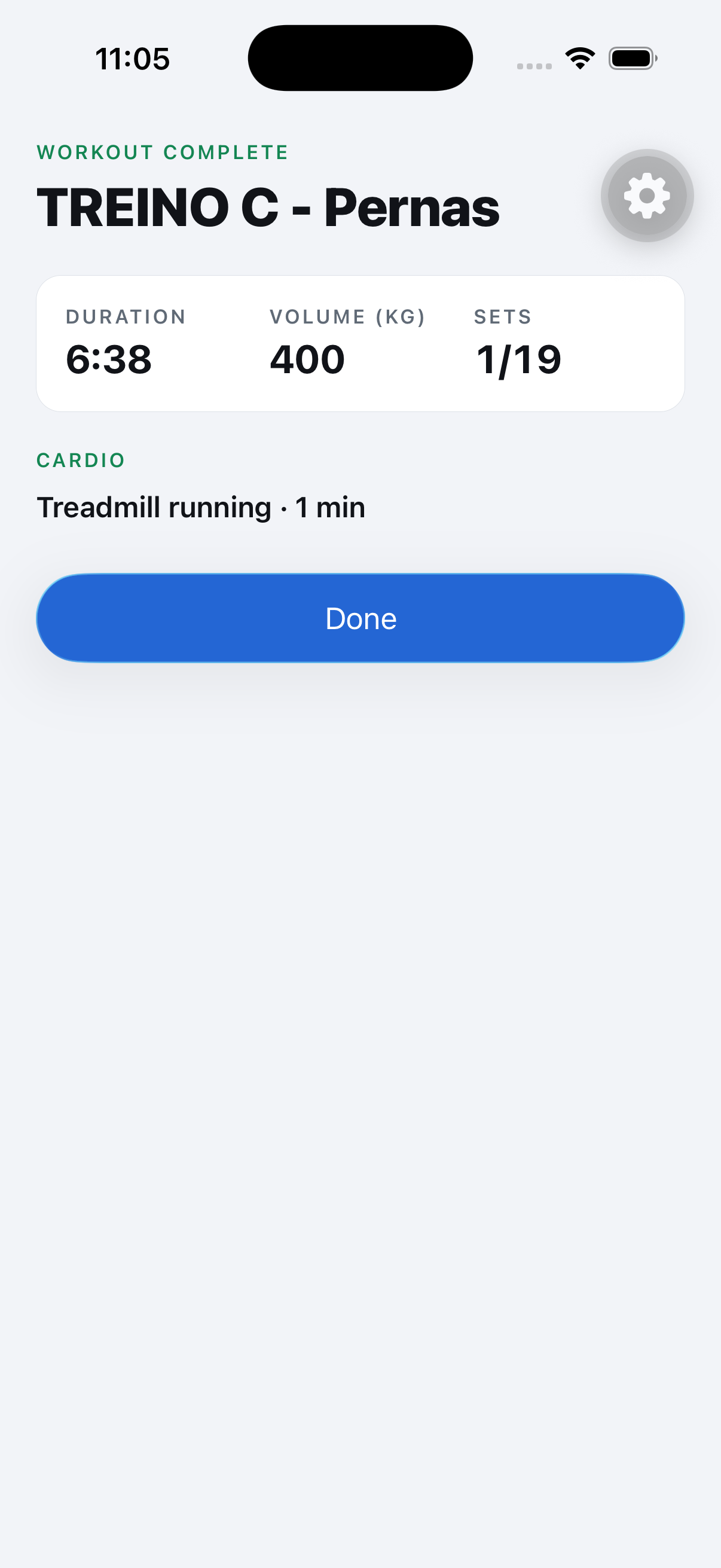
The summary lists it
Workout complete: duration, volume, sets, and a Cardio line reading Treadmill running · 1 min.
Then one question, or skip
The effort sheet tinted violet over the Today tab: How hard was it?, a horizontal slider with a white pill near the right end, and the label 8 Hard under it.

Screenshots use fictional demo data.

  • Add it anywhere: The bottom of the session has a second button, Add cardio. Pick from the same catalog the log uses. The block lands right after the exercise you are on, and you can drag it like any card.
  • Time it: Tap Start and the card counts up. The Dynamic Island and the Lock Screen show the same clock with an End button, so the phone can stay in your pocket.
  • Already planned: A routine with cardio after strength starts every session with that block waiting at the end, with its minutes on it.
  • Counts as cardio, not as lifting: The block shows up in the summary, in the session and under Cardio and sports in History. It never touches your progression, and Apple Health gets it as its own workout of the right type.
  • How hard was it? After Done, one question about the whole session, cardio included. Tap or drag the scale from 1 to 10, or skip it. The answer stays on the session page.

Where to find it: Start a workout, scroll to the bottom, Add cardio.

Fixed

A steadier friend profile

Coming back from a session no longer makes the calendar flicker, and a session you already opened shows up at once.

Fixed

  • Calendar rings stay put: Coming back to a friend’s profile from a session used to make the older days of the month lose their rings for a moment. What is on screen now stays while the newest check-ins are refreshed behind it.
  • Faster second look: A friend’s session you already opened comes up at once, then refreshes its kudos count. Profiles you visited keep their calendar the same way, so they open filled instead of empty.

Where to find it: Friends tab, open a friend, tap a day, come back.

Fixed

Catch up on what changed

What’s new in Settings now opens the website’s release history, with the full notes and annotated screenshots.

Fixed

  • Opening What’s new shows the live release history in your app’s language instead of replaying the feature introduction. The page needs an internet connection.

Where to find it: Open Settings → What’s new, then choose an update. Available to internal TestFlight testers while Apple reviews the external release.

Fixed

One menu for the routine

Share, rename and delete now sit under one ⋯ on the routine page, and beta testers get coach reviews without a daily cap.

Fixed

  • Routine page: The share and delete buttons in the header became one ⋯ menu with Share routine, Rename and Delete routine. Rename opens a field under the title; the Rename link in the middle of the page is gone.
  • Coach review: Beta testers already had no limit on routine generations, but the coach review still counted 3 a day and said “Back in 15 h”. It now follows the same rule.

Where to find it: Routines tab, open a routine, tap ⋯ in the top right.

Fixed

Your account survives a dead zone

Opening the app with no signal no longer signs you out for that session: the photo tile, the feed post and the challenge check-in all come back.

Fixed

  • Signed in without signal: Opening the app where the phone could not reach the server used to run that whole session as signed out. Your account is now read from the phone first, and the server is asked again as soon as there is signal.
  • Photo on the summary: The Add photo tile at the top of the finished-workout page was missing after such a launch. It shows again.
  • Challenge check-in: A workout finished during one of those sessions was never counted in your challenge. It counts now, and the ones already on your phone are sent the next time the app opens signed in.
  • Feature introduction: The introduction to a new feature no longer comes up right after a workout, where the routine changes and badge sheets belong. It waits for the next time you open the app.

Where to find it: Nothing to do. Open the app once with signal and any workout stuck on the phone is posted and counted.

New in happiergym

Know what’s new

Get a quick introduction to a new feature, then carry on with what you were doing.

Settings entry at launch
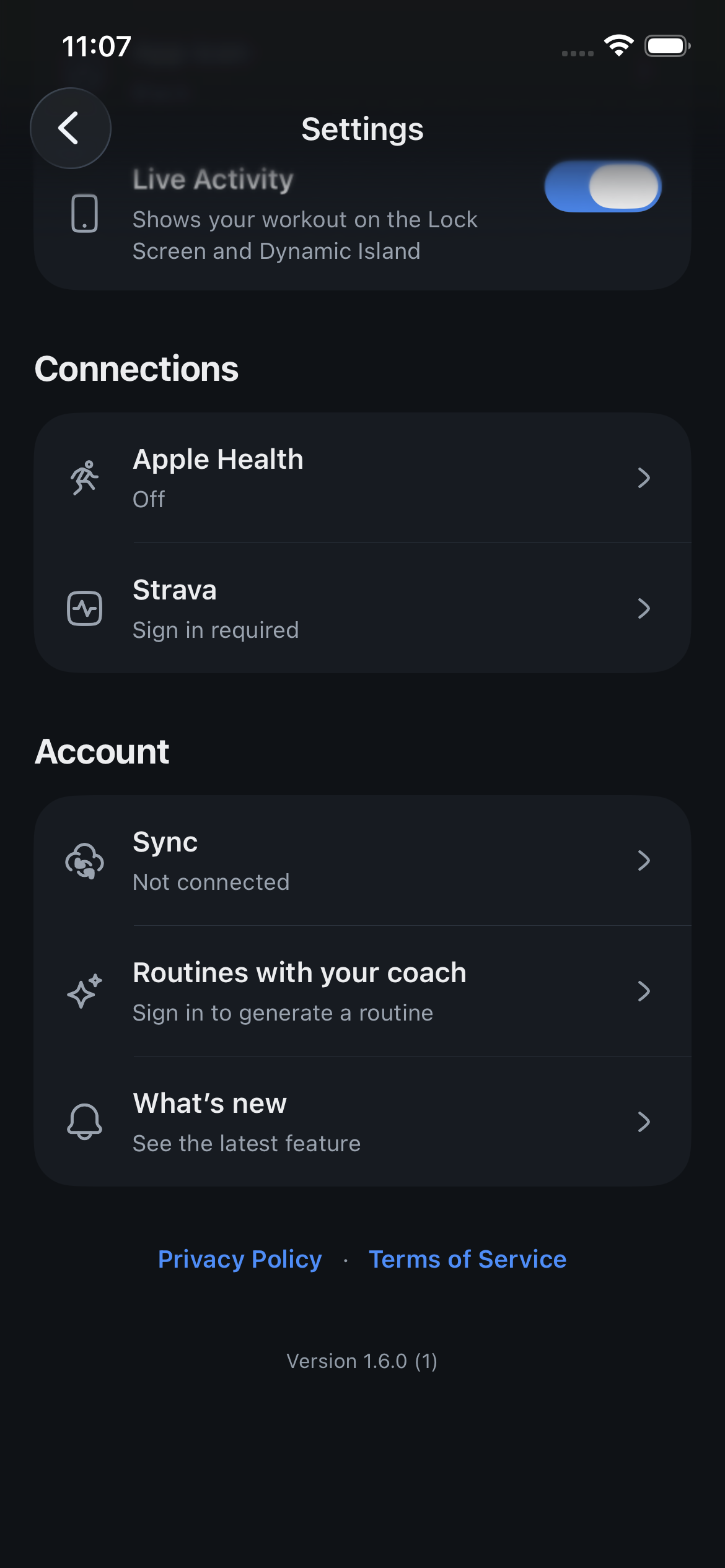
Settings with the What’s new row below Routines with your coach at the introduction’s original launch.Open What’s new
Meet Routine insights
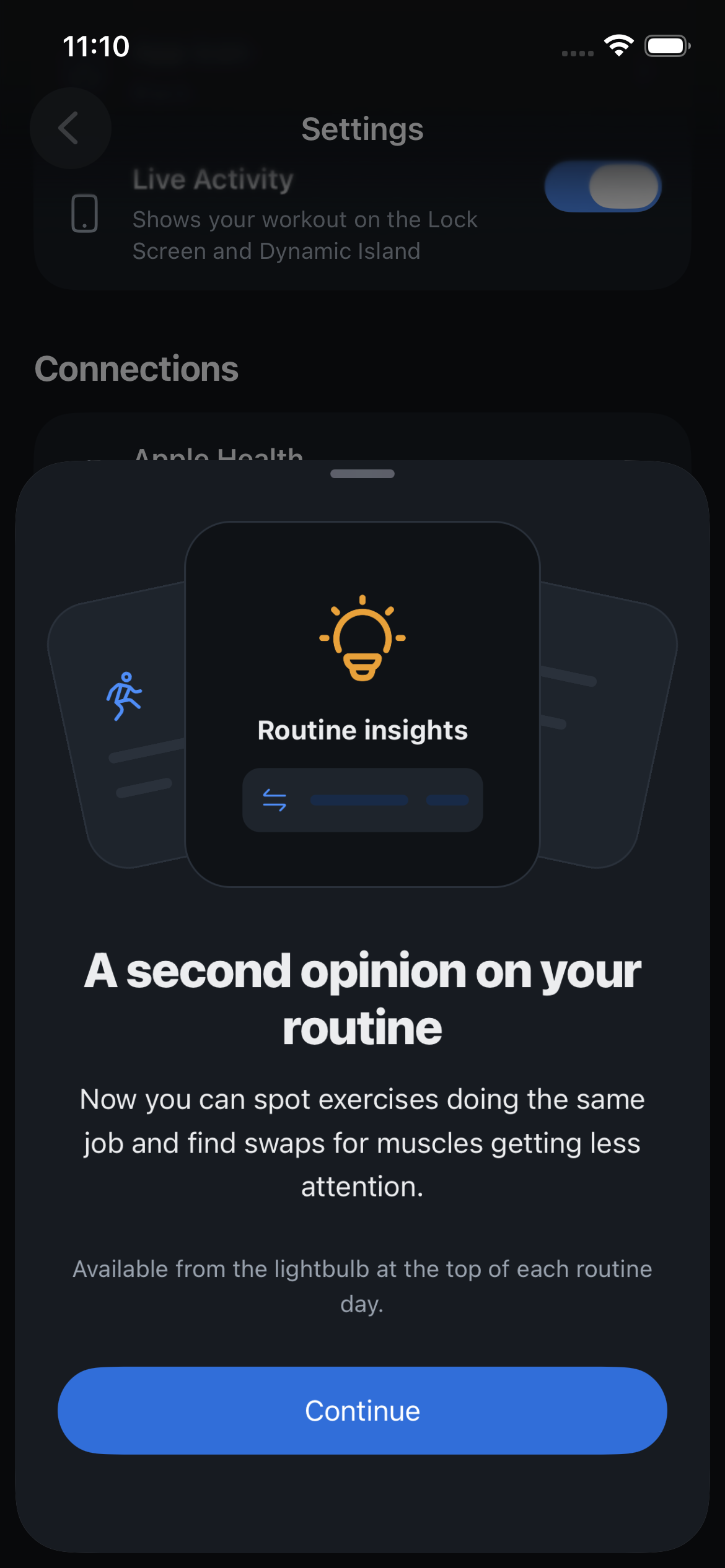
The compact Routine insights introduction, titled A second opinion on your routine, with a fan of cards, a short explanation, a lightbulb location hint and one Continue button.
Continue where you left off
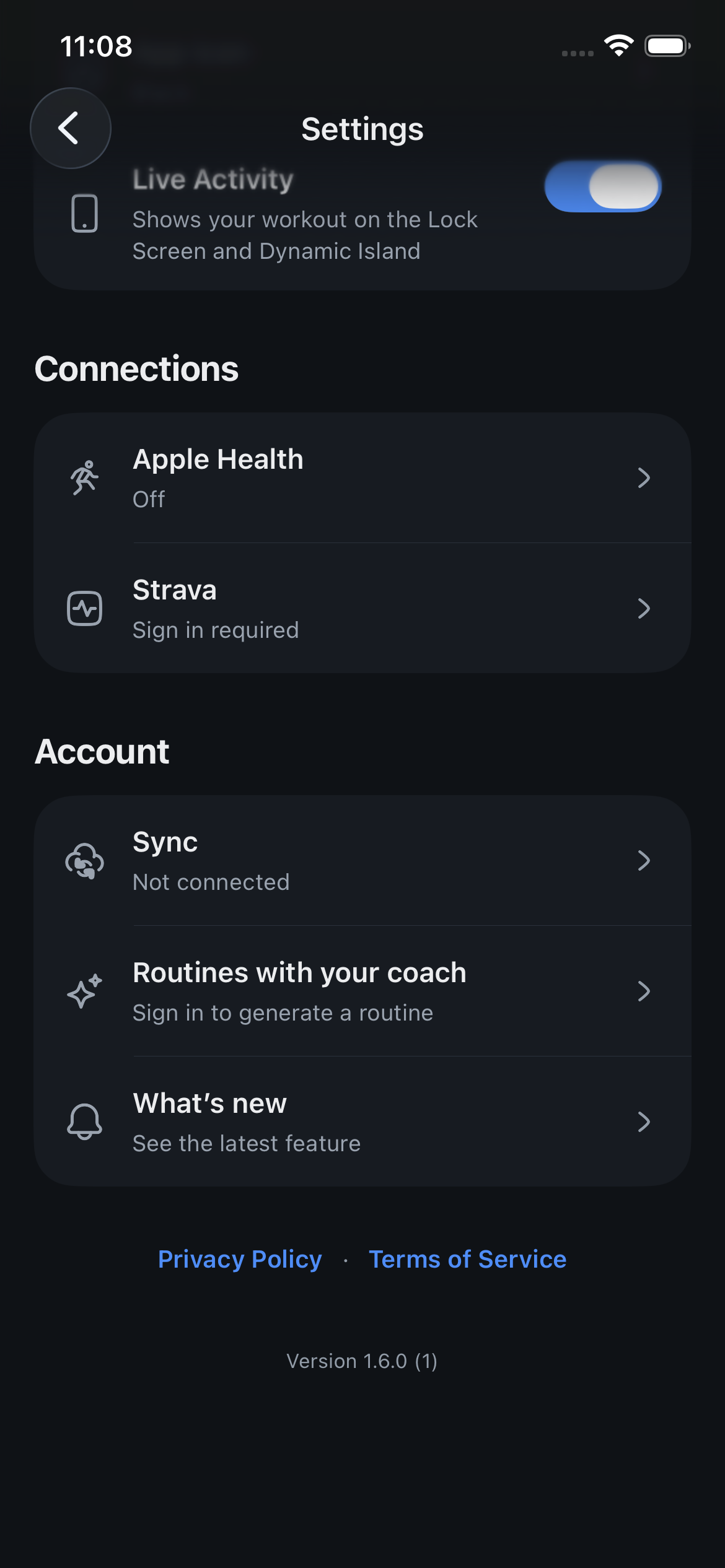
Settings is visible again after tapping Continue to close the introduction.

Screenshots use fictional demo data.

  • See what arrived: The latest feature appears once on Today, between workouts. The first introduction is about Routine insights.
  • Keep going: Read a short introduction in a compact sheet, then tap Continue to close it.
  • Catch up later: Published features and fixes are in Settings → What’s new.

Where to find it: Feature introductions appear on Today between workouts. Available to internal TestFlight testers while Apple reviews the external release.

Fixed

Calendar taps, the widget week, the library button and imports

A training day opens with one tap, your own sessions open with their photo, and the widget matches your training week.

Fixed

  • One tap to a session: A calendar day with a single session opens it straight away, on your profile and on the History tab. The day list only appears when a day holds more than one.
  • Your sessions on your profile: Tapping one of your own days on your profile calendar opens the session as your friends see it, photo and kudos included, instead of the plain record.
  • Group sessions counting again: Sessions finished since Wednesday were not reaching your groups. They are credited now, and the ones that were held back have been sent.
  • Widget week: A routine that skips weekends now shows five days on the Home Screen widget, the same as the Today tab.
  • Exercise library: The dumbbell button on the Routines tab opens the library again.
  • Import: A sheet in Portuguese now finds every exercise by its Portuguese name (names from S on were being missed and shown in English), “Cadeira flexora” lands on the seated curl, and a good morning on the hack machine is read as a good morning, not a squat.

Where to find it: Friends tab, My profile, tap a day.

New in happiergym

Drop sets

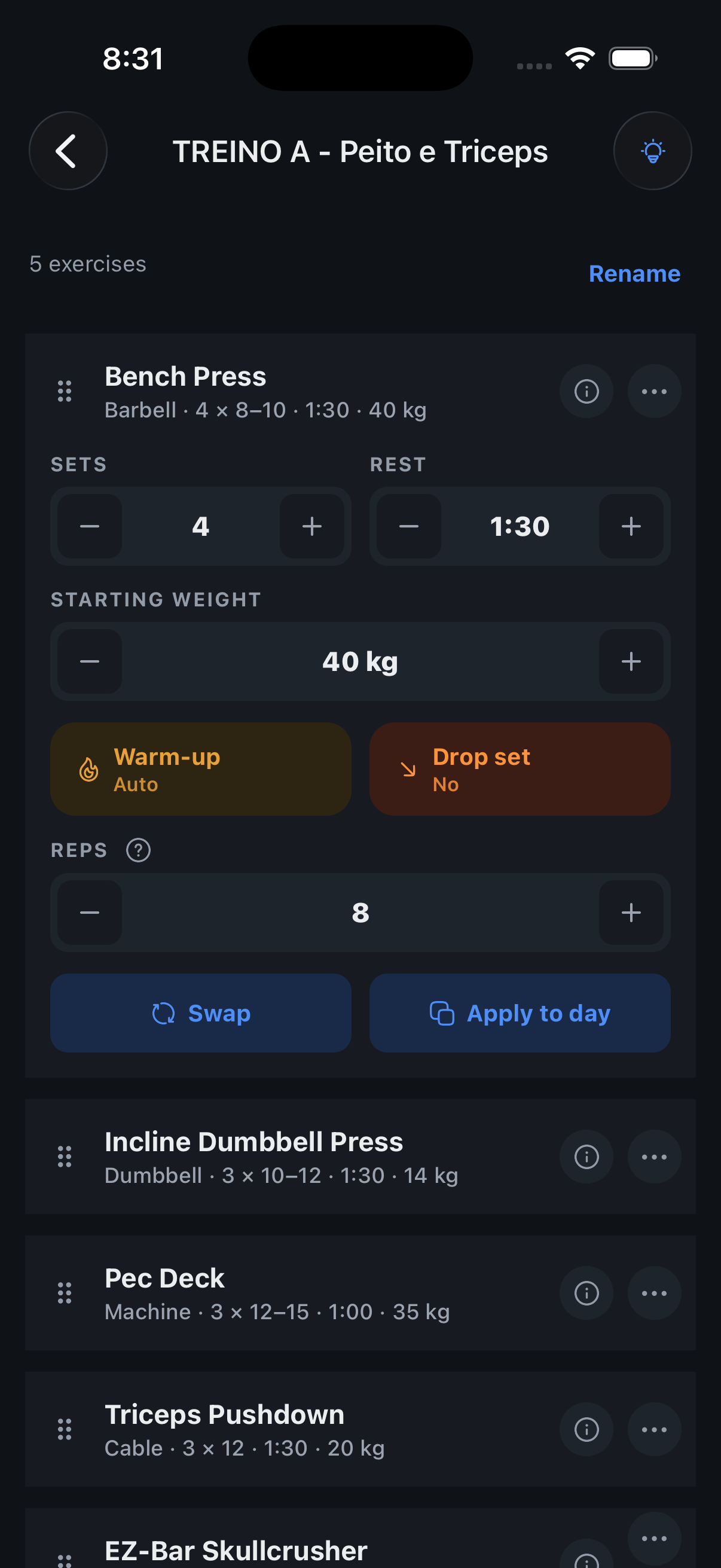
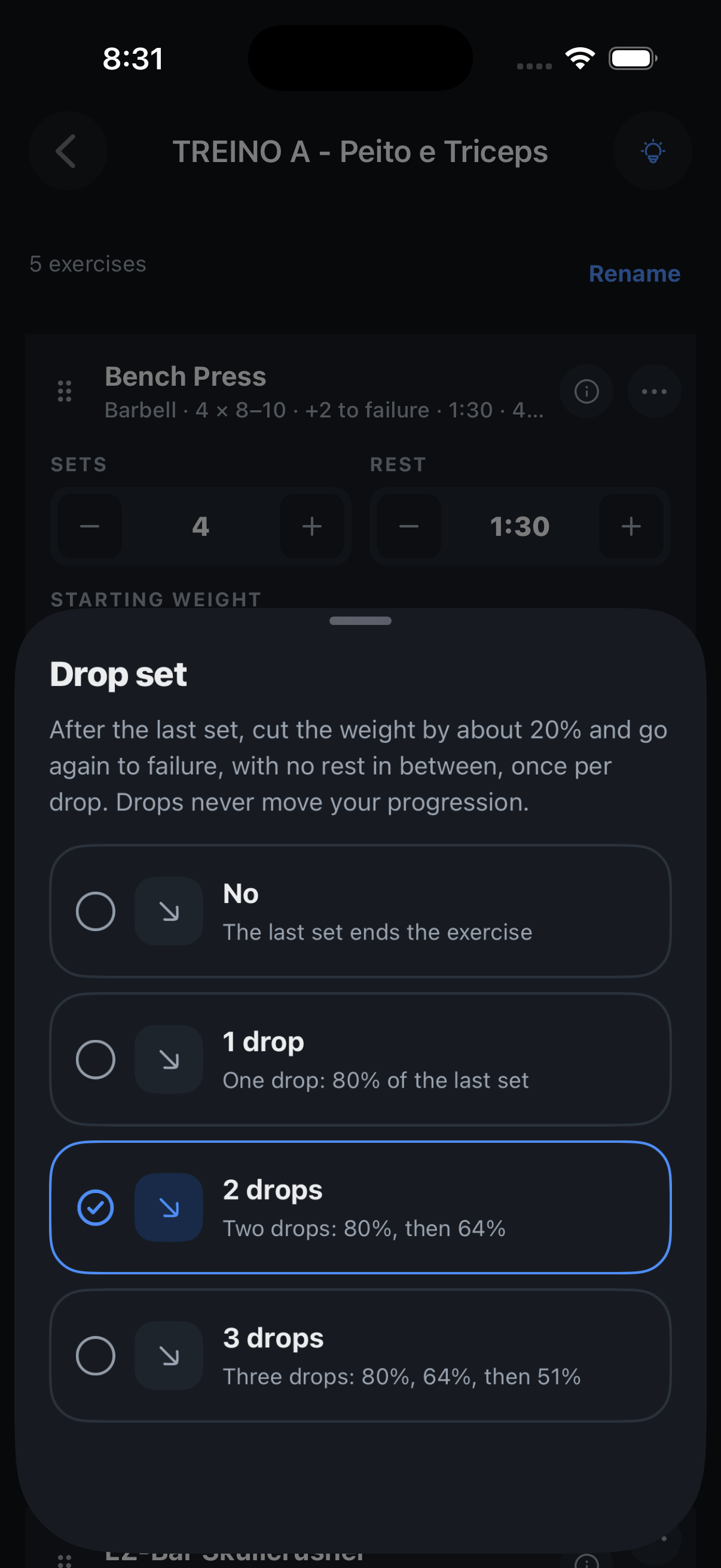
Finish an exercise with drops: same set, less weight, no rest, until you cannot.

Expand the exercise
Routine editor for TREINO A with Bench Press expanded: sets, rest, starting weight and the Warm-up and Drop set controls.Tap Drop set
Pick 1 to 3 drops
The Drop set sheet: No, 1 drop (80% of the last set), 2 drops (80%, then 64%) selected, 3 drops.
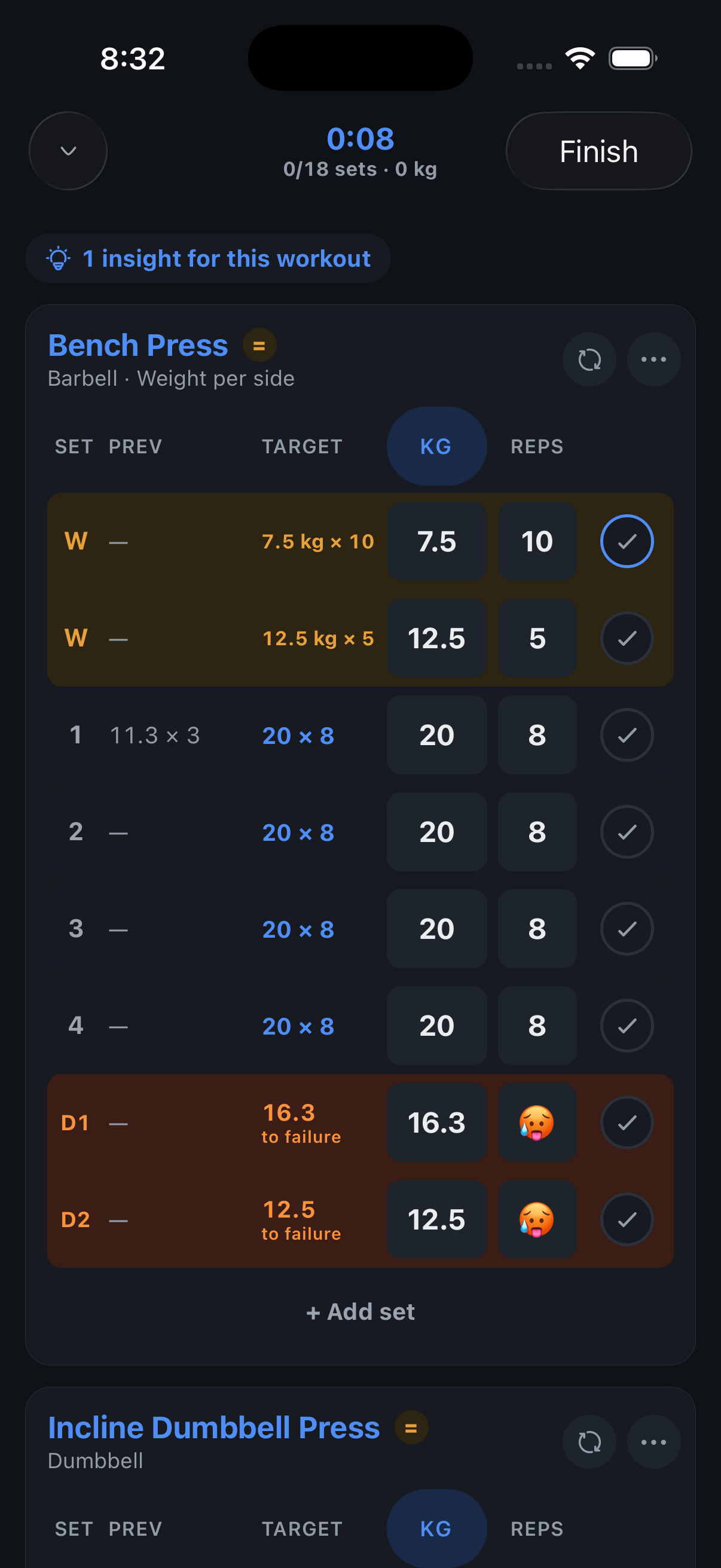
The drops wait under the last set
The workout: Bench Press with warm-ups, sets 1 to 4 at 20 × 8 and the rows D1 16.3 and D2 12.5 marked to failure.
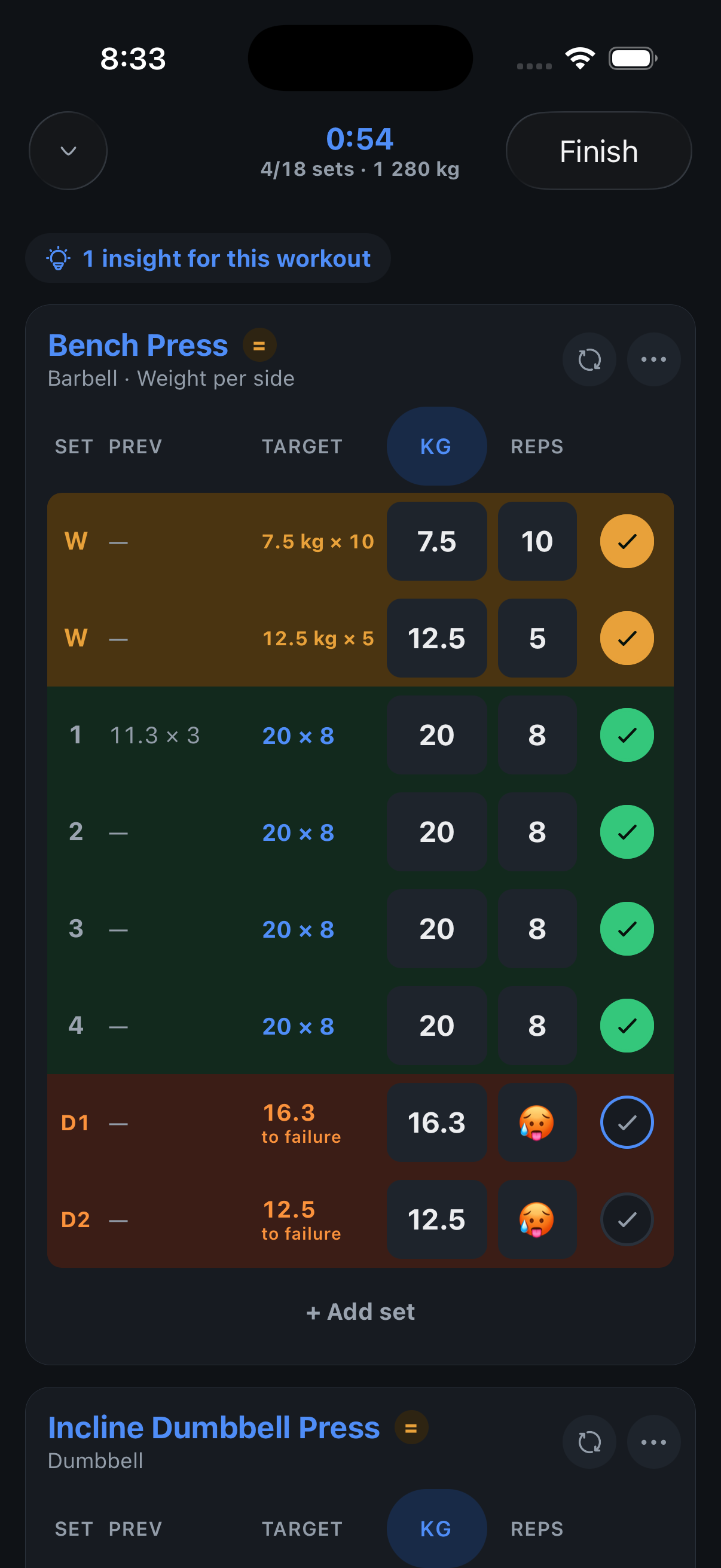
Set done, straight to D1
Set 4 logged; the D1 row at 16.3 kg is the current set and no rest started.

Screenshots use fictional demo data.

  • Plan it: In the routine editor, each exercise has a Drop set switch with 1 to 3 drops. The last set gets them.
  • See it: The session shows each drop as D1, D2 under the set it belongs to, with the weight already cut by 20% and rounded to what the bar takes, and “to failure” where the reps would be. Edit the weight if the rack says otherwise.
  • No rest between: Finishing the set jumps straight to its drop. Rest starts after the last one.
  • Progression stays honest: A drop is to failure, so there is nothing to count and your coach never reads it when deciding next session’s weight.
  • Mid-session too: The exercise menu adds a drop set to any exercise; swipe a drop away like a warm-up. The end-of-workout sheet offers to keep the change.

Where to find it: Routines tab, open a day, expand an exercise, Drop set. Needs the newest TestFlight version.

New in happiergym
Bring your own training sheet

Already train from a sheet? Send it to your coach and get the same routine in the app, weights included.

The coach asks first
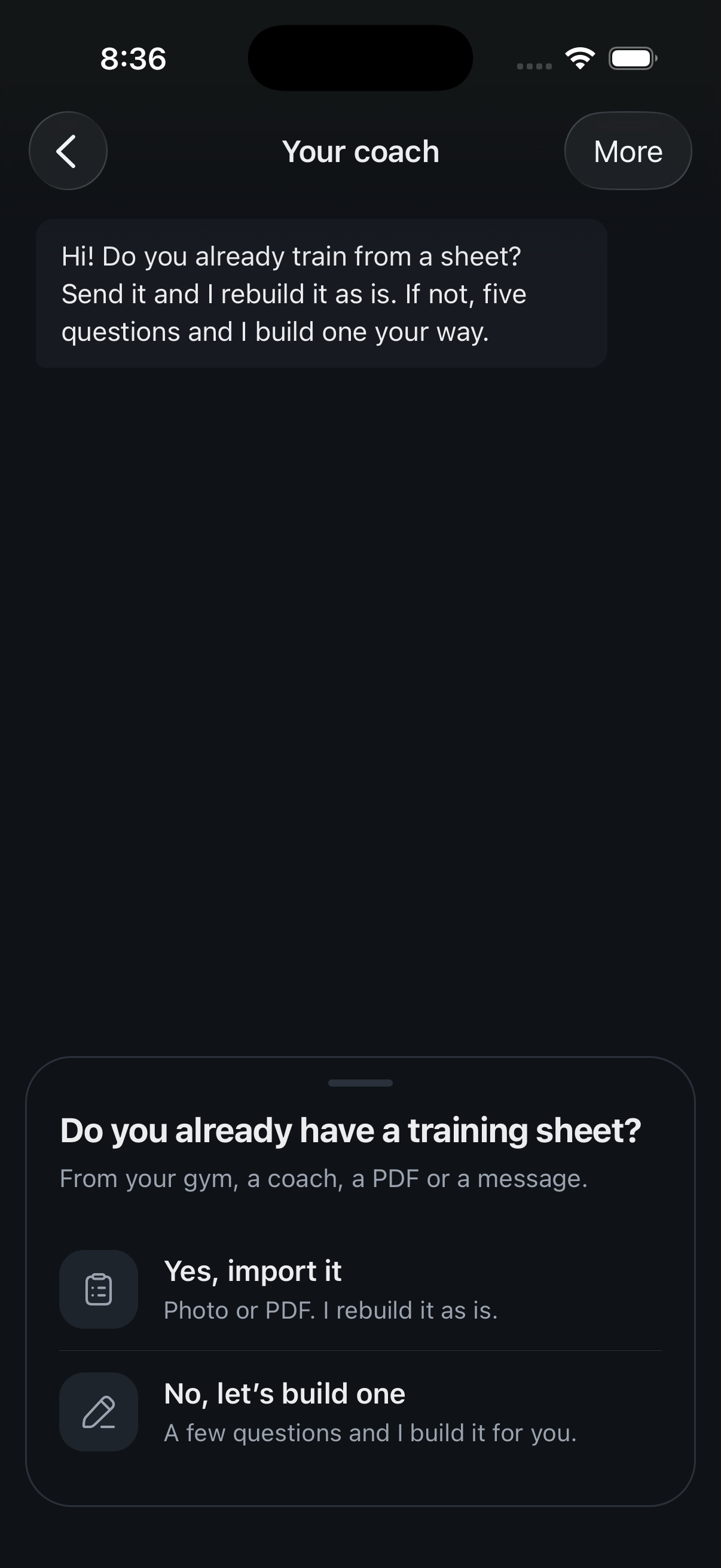
Your coach opens with “Do you already have a training sheet?” and two answers: Yes, import it, and No, let’s build one.Start here
Attach up to three photos or PDFs
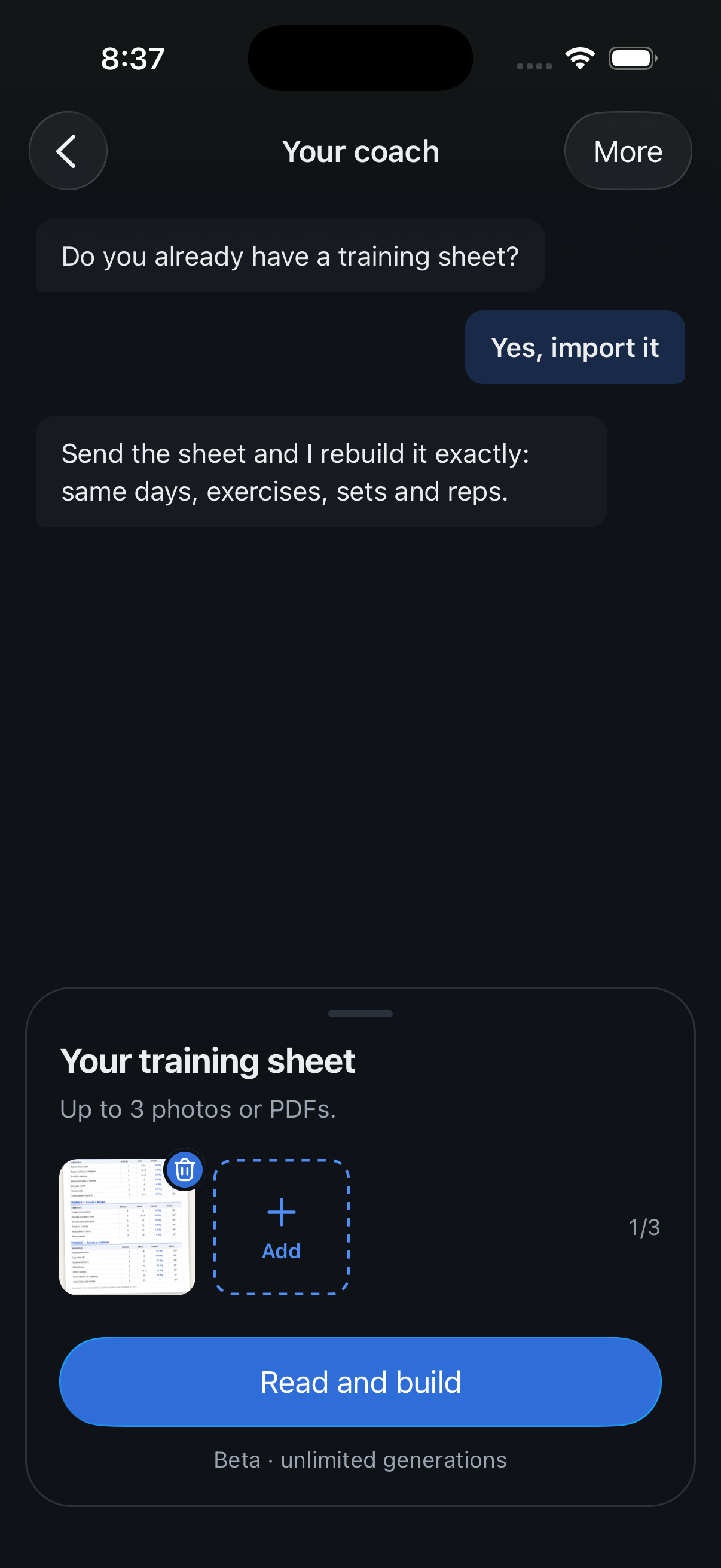
The Your training sheet sheet with ficha-abc.jpg attached, 1/3, and the Read and build button.
The routine, rebuilt as written
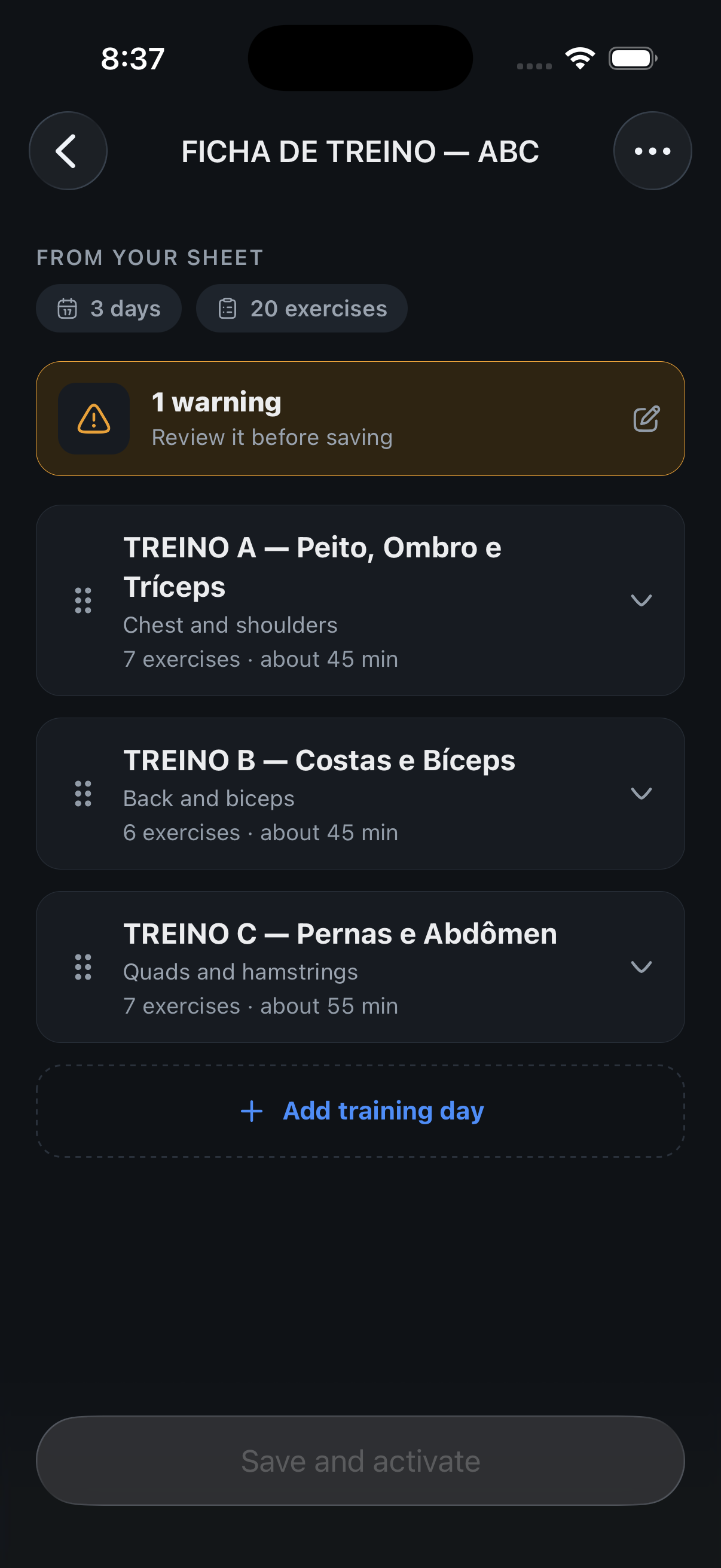
The preview FICHA DE TREINO — ABC, From your sheet: 3 days, 20 exercises, 1 warning to review, and three training days.
A close match is called out
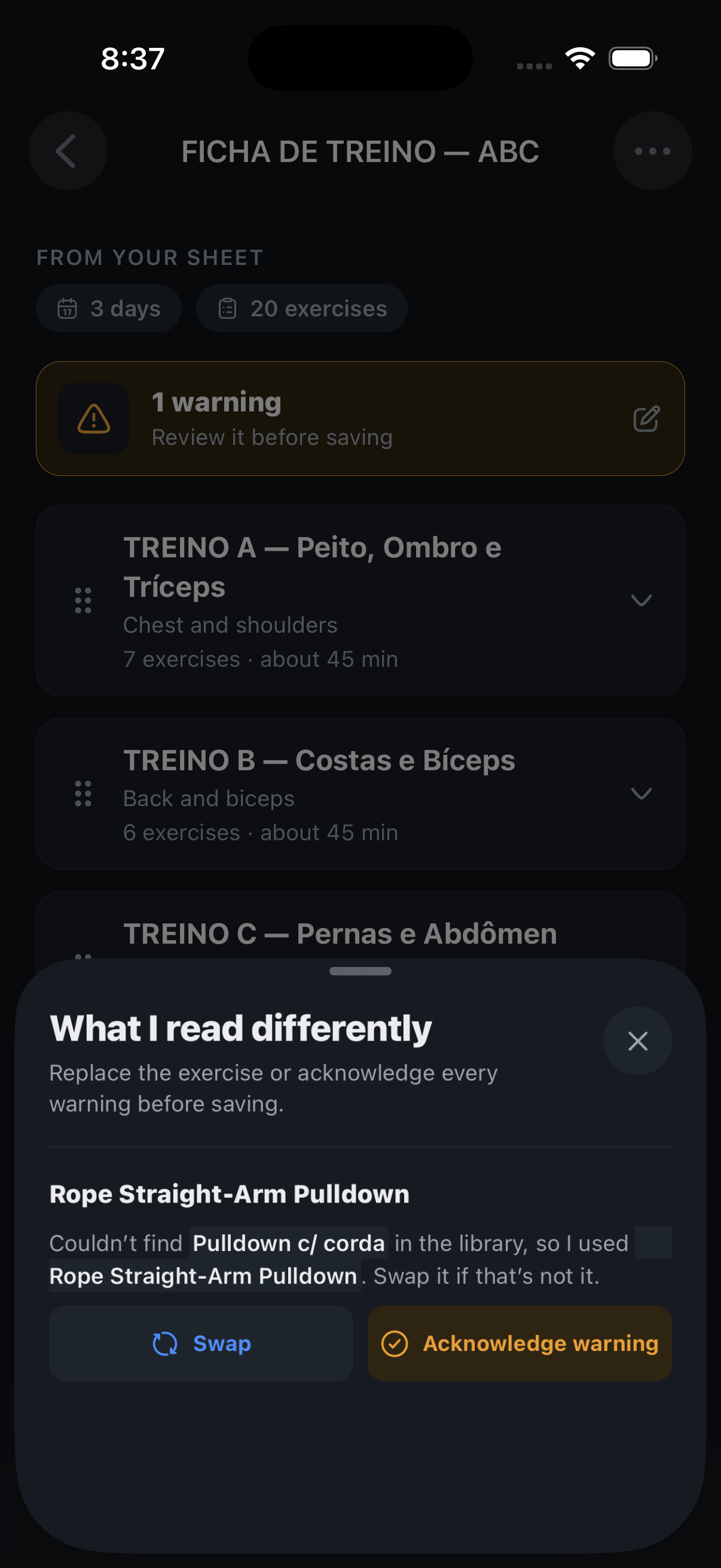
What I read differently: Pulldown c/ corda was not found, Rope Straight-Arm Pulldown was used; Swap or Acknowledge warning.
Your first workout, weights included
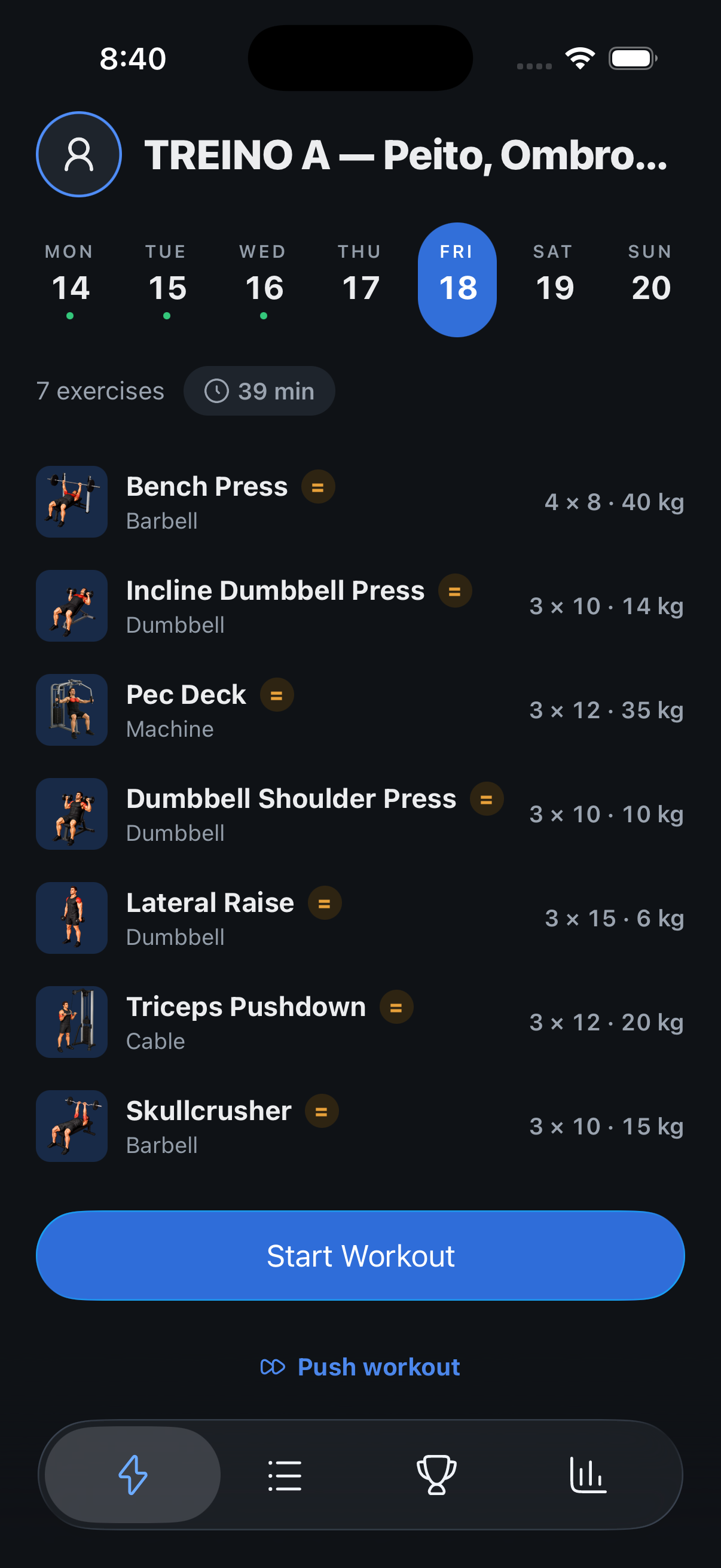
Today shows TREINO A — Peito, Ombro e Tríceps with 7 exercises and the loads from the sheet: Bench Press 4 × 8 · 40 kg.

Screenshots use fictional demo data.

  • Import a sheet: The coach now opens with one question, do you already have a training sheet? Say yes and send up to three photos or PDFs.
  • Same routine, rebuilt: Days, exercises, sets, reps and rest come through as written. Each exercise is matched to the library; when a name was only close, the preview says what was used and lets you swap it.
  • Your weights start you off: The loads on the sheet become the first session’s targets. From there, progression works as usual.
  • Two generations: Reading a sheet uses two of the day’s three generations, one for the routine and one for the reading.

Fixed

  • Beta testers: Accounts in the beta program have no daily limit on routines and coach reviews. Settings and the coach say so.
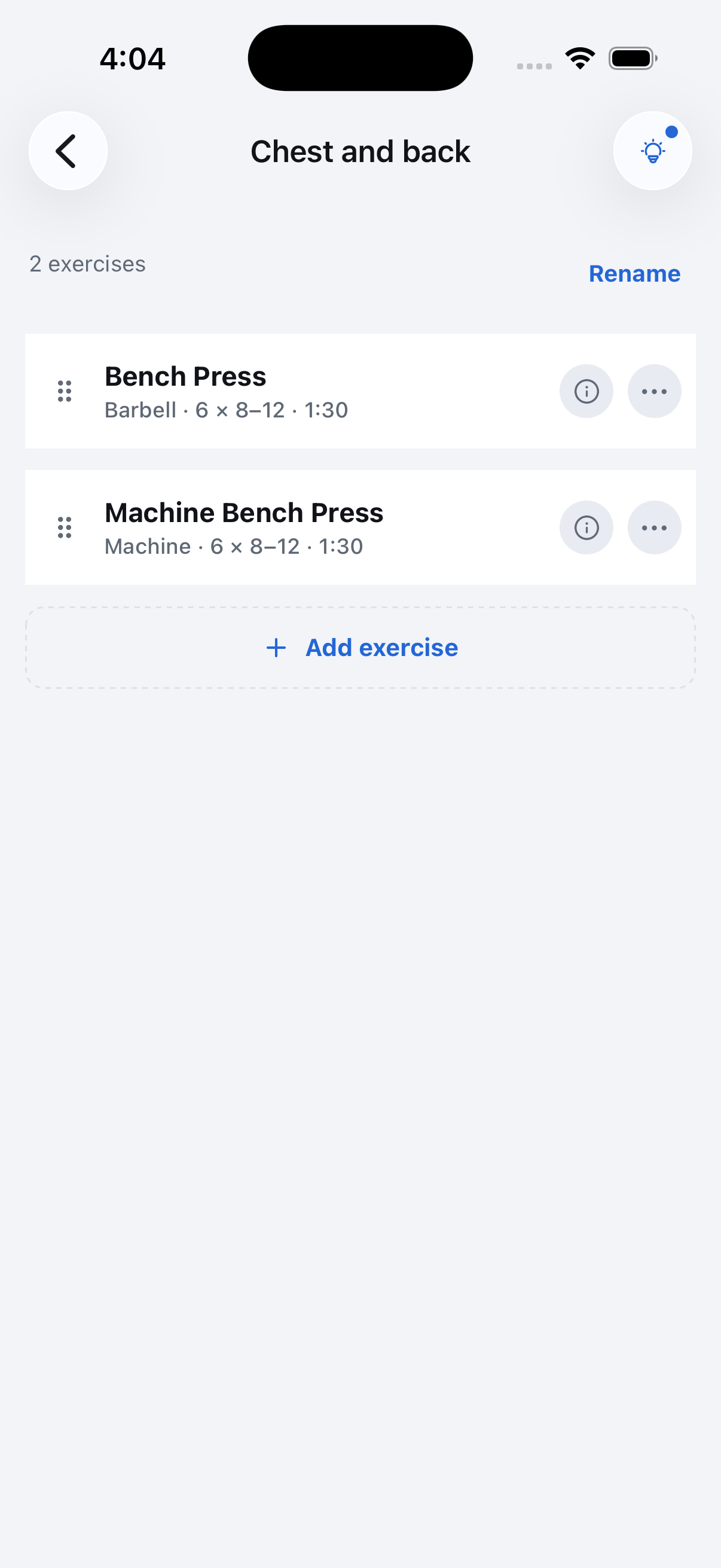
  • Routine editor: An exercise with a single rep count reads “3 × 12”, not “3 × 12–12”.
  • Rest chime: The rest-over sound file was renamed so Android builds compile again.

Where to find it: Routines tab, Build with your coach, then “Yes, import it”. Photos and PDFs; needs the newest TestFlight version.

New in happiergym
Log sets from the Lock Screen

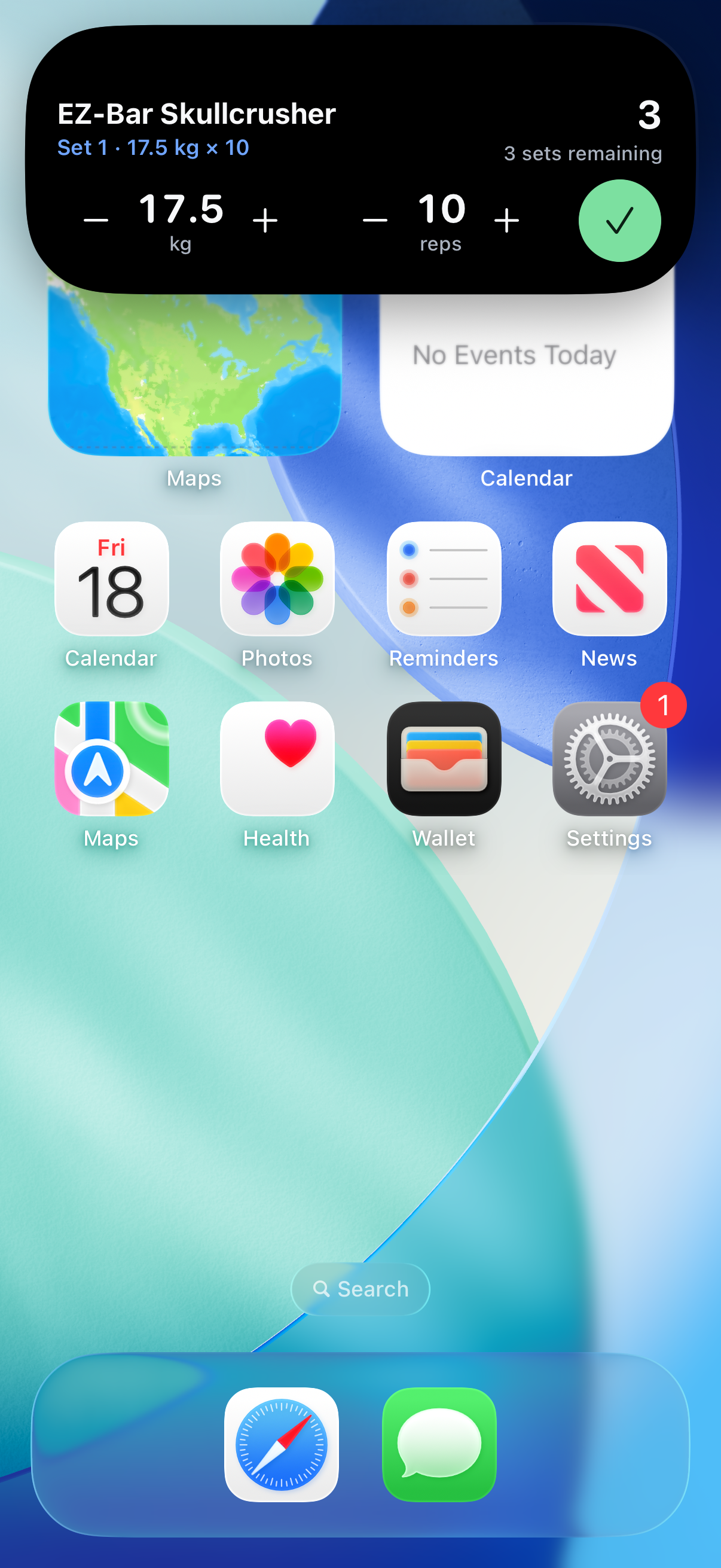
Change the weight and reps and tick the set off from the Dynamic Island or the Lock Screen, without opening the app.

Press and hold the island
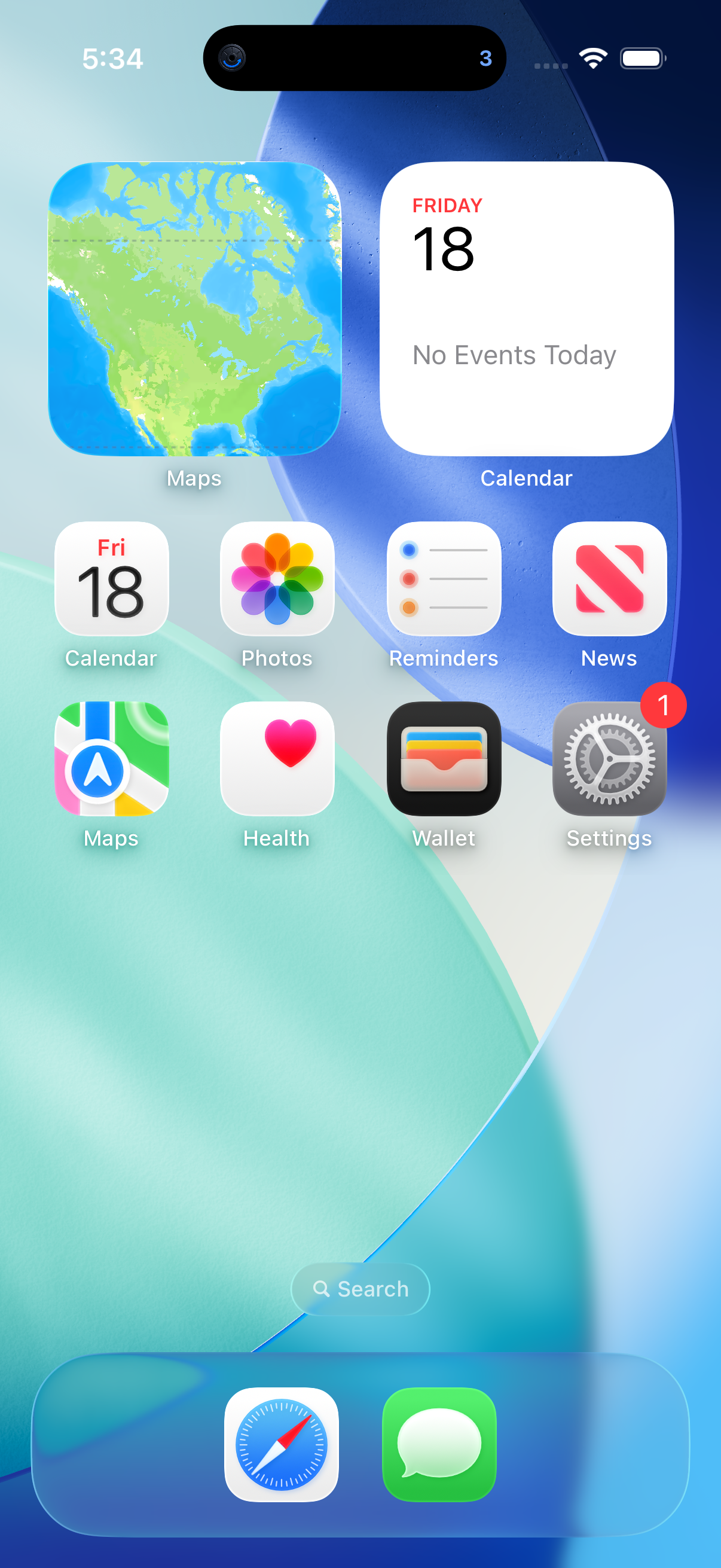
Home Screen during a workout; the Dynamic Island shows the happiergym plate and 3 sets left.Hold here
Adjust and tick the set
The expanded island for EZ-Bar Skullcrusher, Set 1, weight moved to 17.5 kg with the −/+ buttons, 10 reps and a check.
Rest with +30s and Skip
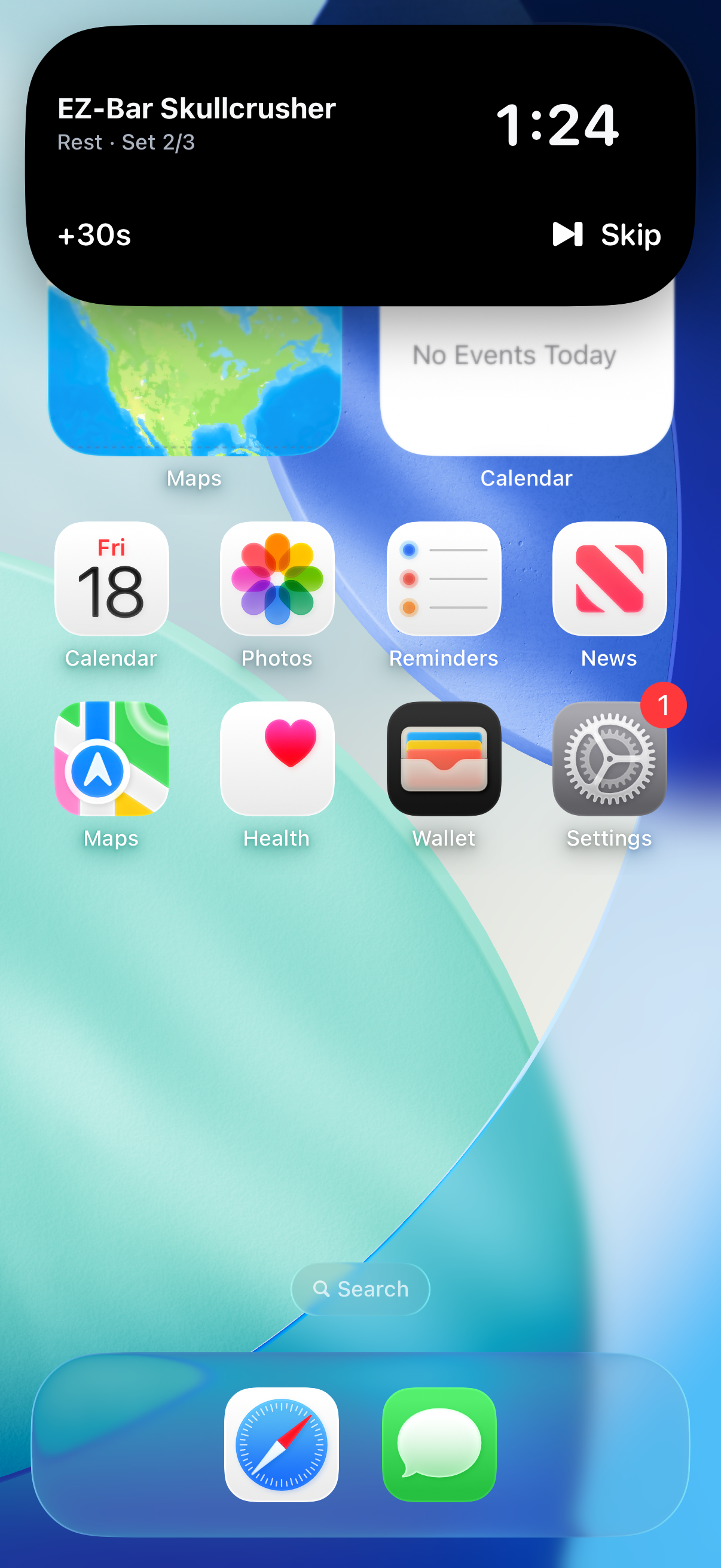
The island as a rest card: EZ-Bar Skullcrusher, Rest · Set 2/3, 1:28 counting down, +30s and Skip.
Logged in the app
The workout in the app: Set 1 of EZ-Bar Skullcrusher logged at 17.5 kg × 10 and the rest running.

Screenshots use fictional demo data.

  • Log without unlocking: The workout card now has −/+ for weight, −/+ for reps and a check. Tap the check and the set is logged and the rest starts, the same as in the app.
  • The next set is ready: During the rest, the card already shows the next set with its target, so you can adjust and confirm before the countdown ends.
  • Steps that match the exercise: Weight moves by the exercise’s own increment (2.5 kg by default). With “weight per side” on, the step applies to each side.

Fixed

  • Routine days: The day rows in the routine editor and in the coach’s preview are now the same card: drag handle on the left, chevron on the right, and no numbers. Swipe a day left to delete it in both places.

Where to find it: Long-press the Dynamic Island during a workout, or look at the Lock Screen. Needs the newest TestFlight version.

New in happiergym
Edit your challenge

You can update a challenge you created from its new editing page.

Open the challenge menu
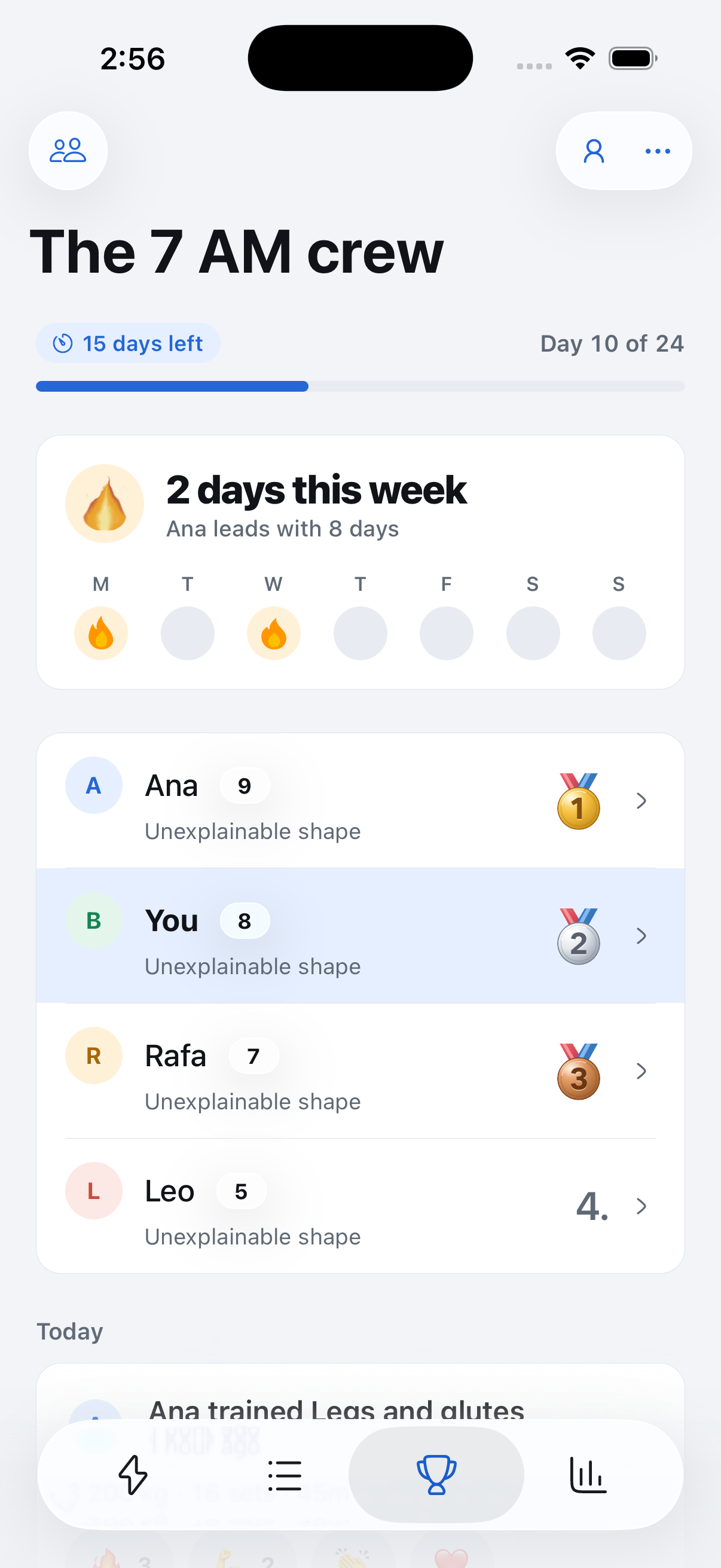
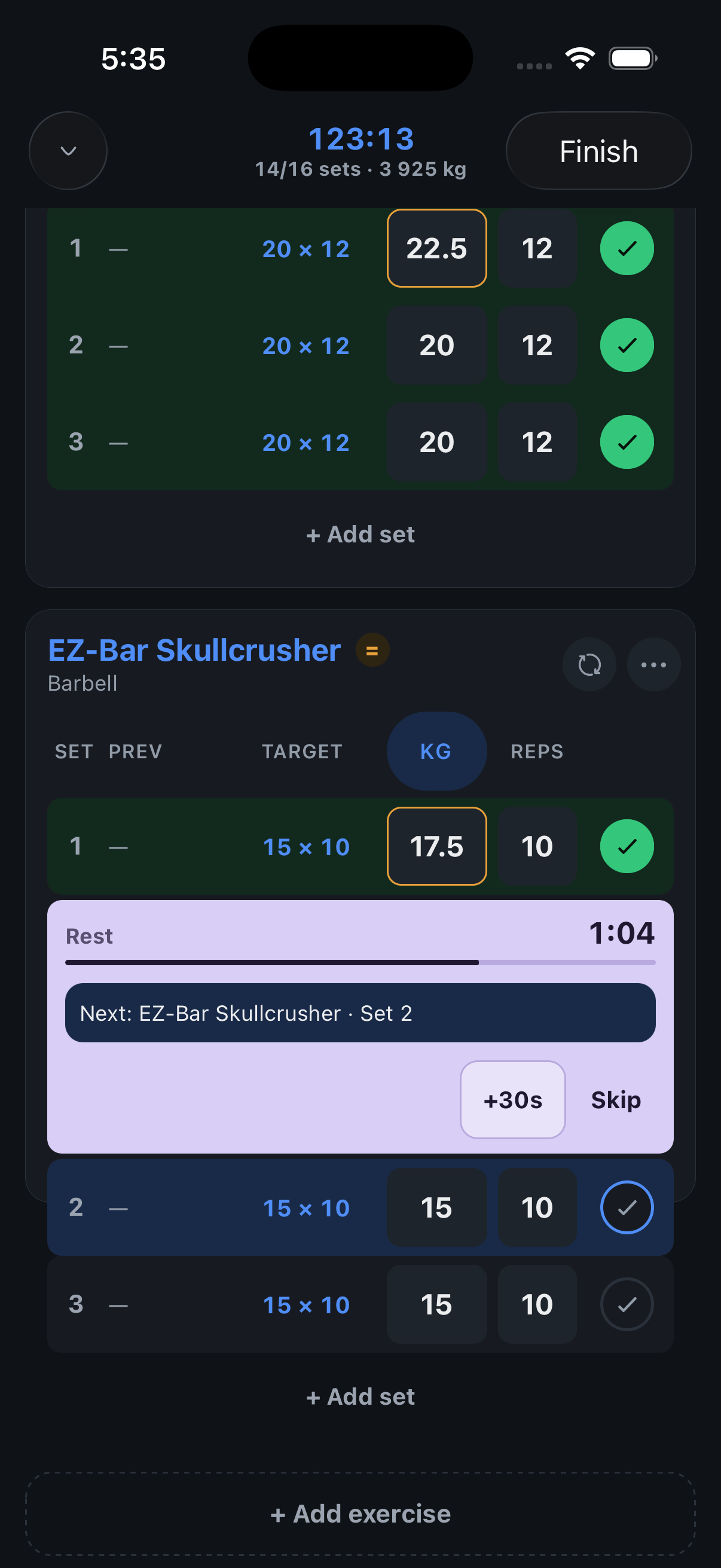
The fictional challenge The 7 AM crew, with the creator’s menu at the top right.Start here to edit
Choose what counts
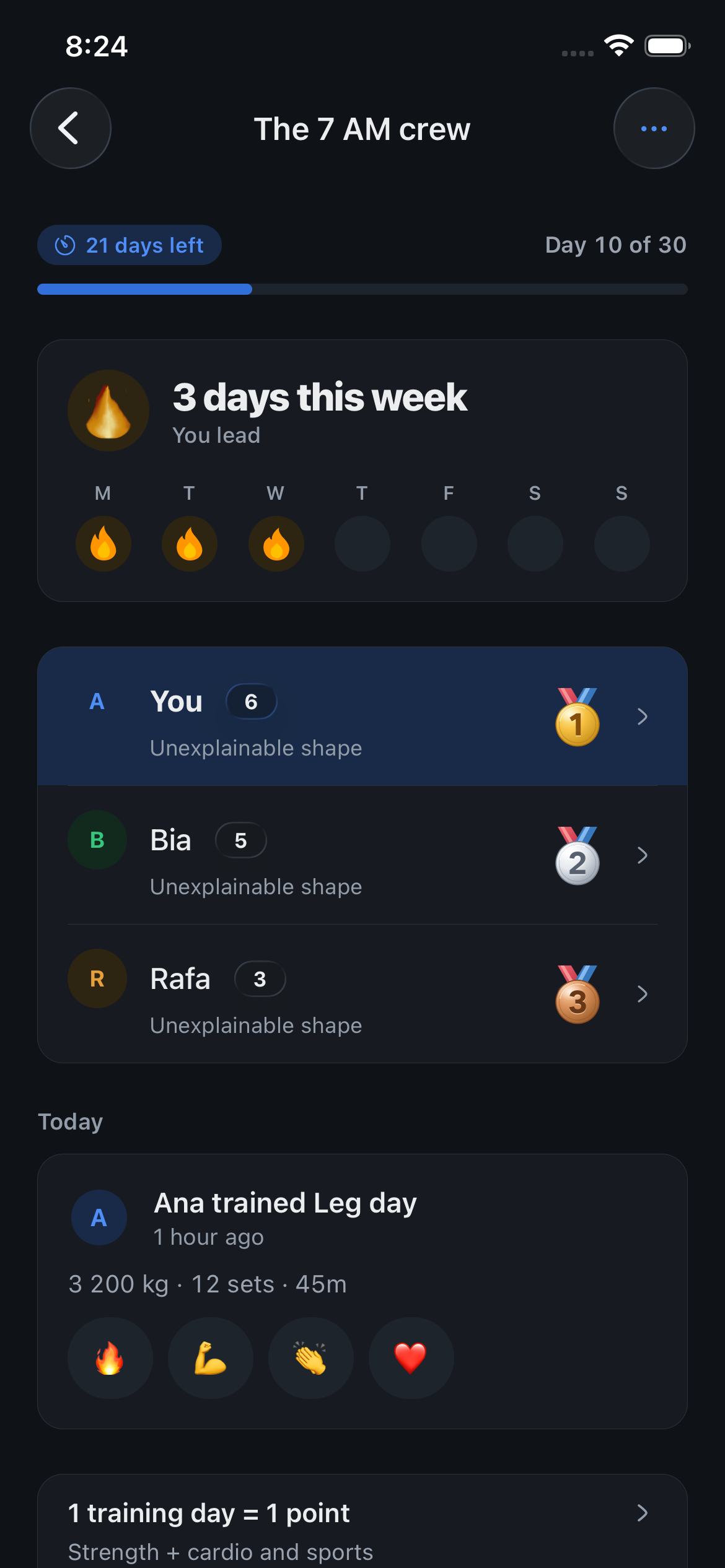
Edit challenge with the new name September crew and cardio switched off, ready to save.
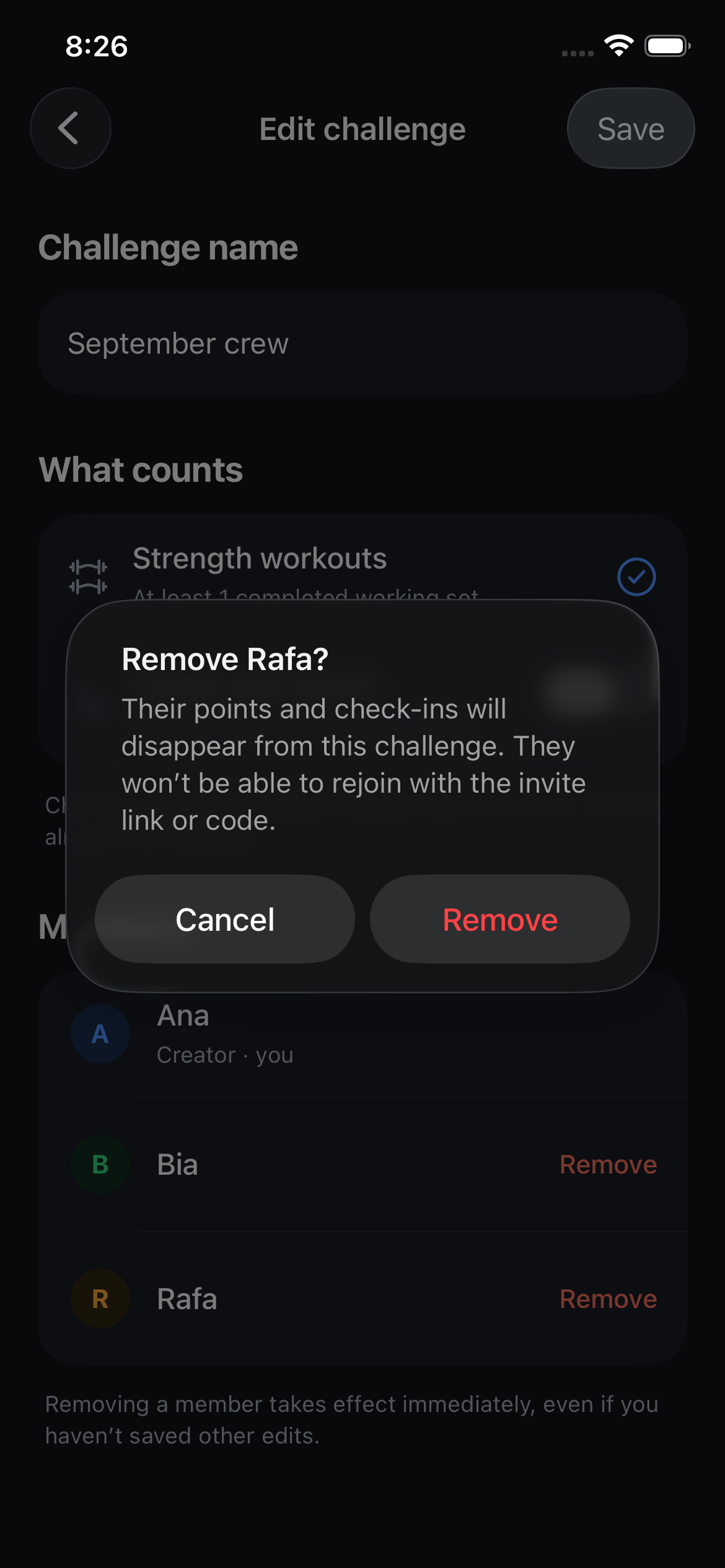
Confirm before removing someone
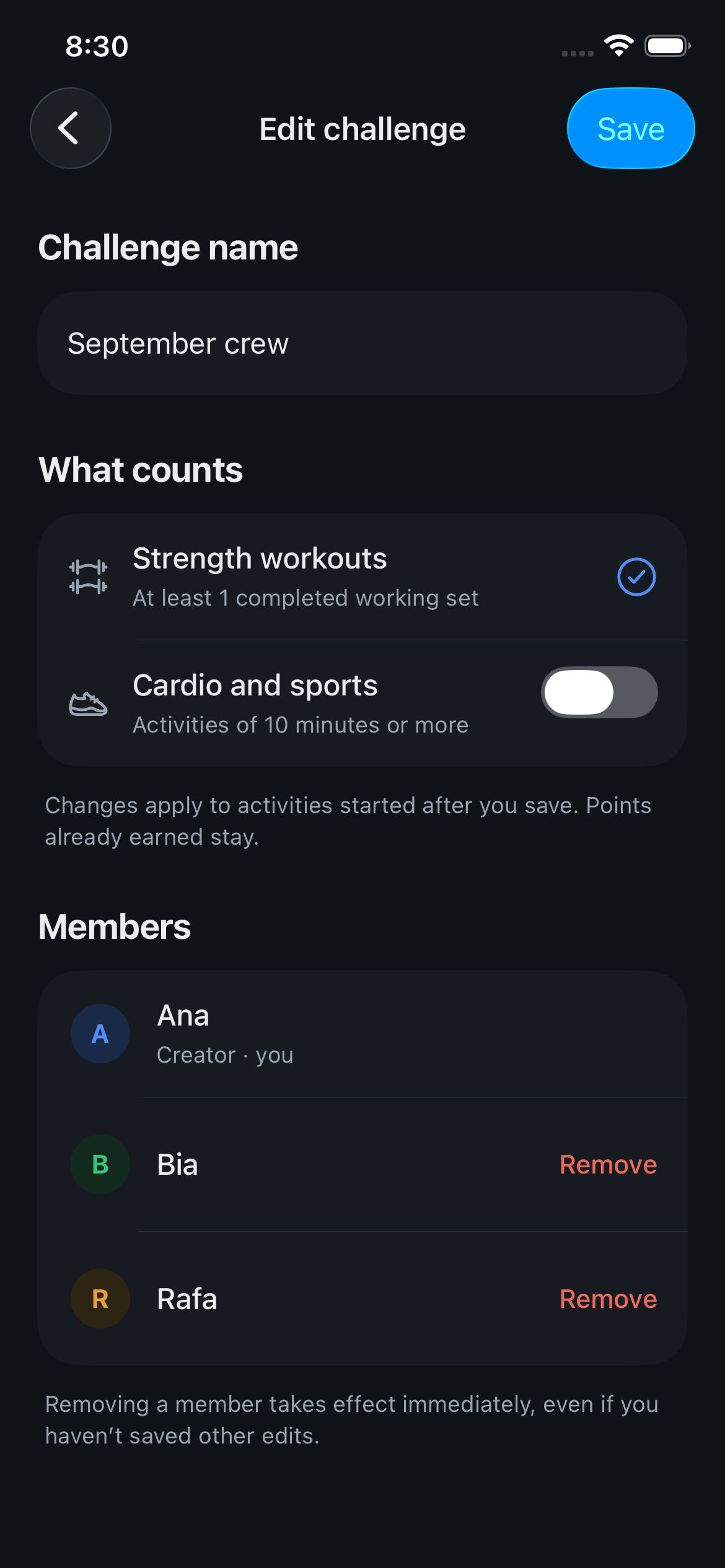
Confirmation to remove fictional member Rafa, explaining the loss of challenge points and blocked rejoining.
See your updated challenge
September crew after saving and removing Rafa, with only Ana and Bia in the ranking and the Strength only rule.

Screenshots use fictional demo data.

  • Change the name: Rename the challenge whenever your group needs a new name.
  • Choose what counts: Count strength workouts only, or include cardio and sports. The new rule applies to activities started after you save. Points already earned stay.
  • Manage members: Remove someone after confirming. Their challenge points are removed too, and they cannot rejoin with the invite.

Fixed

  • Loading: Every spinner in the app is now the happiergym weight plate, including pull to refresh.
  • Cardio and sports: Tapping a logged activity opens its details, with what you did and the guidance. The pencil in the header opens the editor.
  • History: The calendar shows the day’s session photo, and you can pull down to refresh.
  • Group notifications: Tapping “someone trained” opens that workout instead of the group.
  • Challenges: A workout finished moments before opening the group now shows in your week without a manual refresh.
  • Inactivity reminders: A push after 3, 7 and 14 days without training, at your usual hour. Turn it off in Settings under Notifications.
  • Home: A bigger profile picture, and the day strip sits closer to the title.
  • Home: The “someone trained today” row shows their photo, says “logged running” for cardio and sports, and opens that session.
  • Home: Once you tap that row it goes away until a friend logs something new.
  • Settings: The header is translucent like the other pages, with the list dissolving under it.
  • Weight per side: In an exercise’s menu, choose “Weight per side” to type what goes on each side; the app logs and analyzes the total, twice that number.
  • Live Activity: The Lock Screen and Dynamic Island follow the exercise you are actually doing, not the first one on the card.
  • Live Activity: When the rest ends, the card flips to the next set on its own, even with the app closed.
  • Insights: The push/pull balance card says how many sets are missing, and once you accept it, it stays away for the rest of the day instead of coming straight back with new numbers.
  • Dynamic Island: The compact pill stays compact, with the happiergym plate on the left and the countdown on the right, instead of stretching across the whole status bar with a clock icon.
  • Friends: A profile that already knows your body figure keeps it; a phone that never answered takes that answer instead of clearing it.

Where to find it: Open a challenge you created, tap ⋯, then Edit challenge. Finished challenges stay read-only.

New in happiergym
Train with your friends

Invite your friends to a private challenge and see who keeps showing up. Every training day counts.

Screenshots use fictional demo data.

  • Private challenges: Create a group and share the invite with the friends you want to train with.
  • Group ranking: Each training day earns one point. Follow your position and see who is leading.
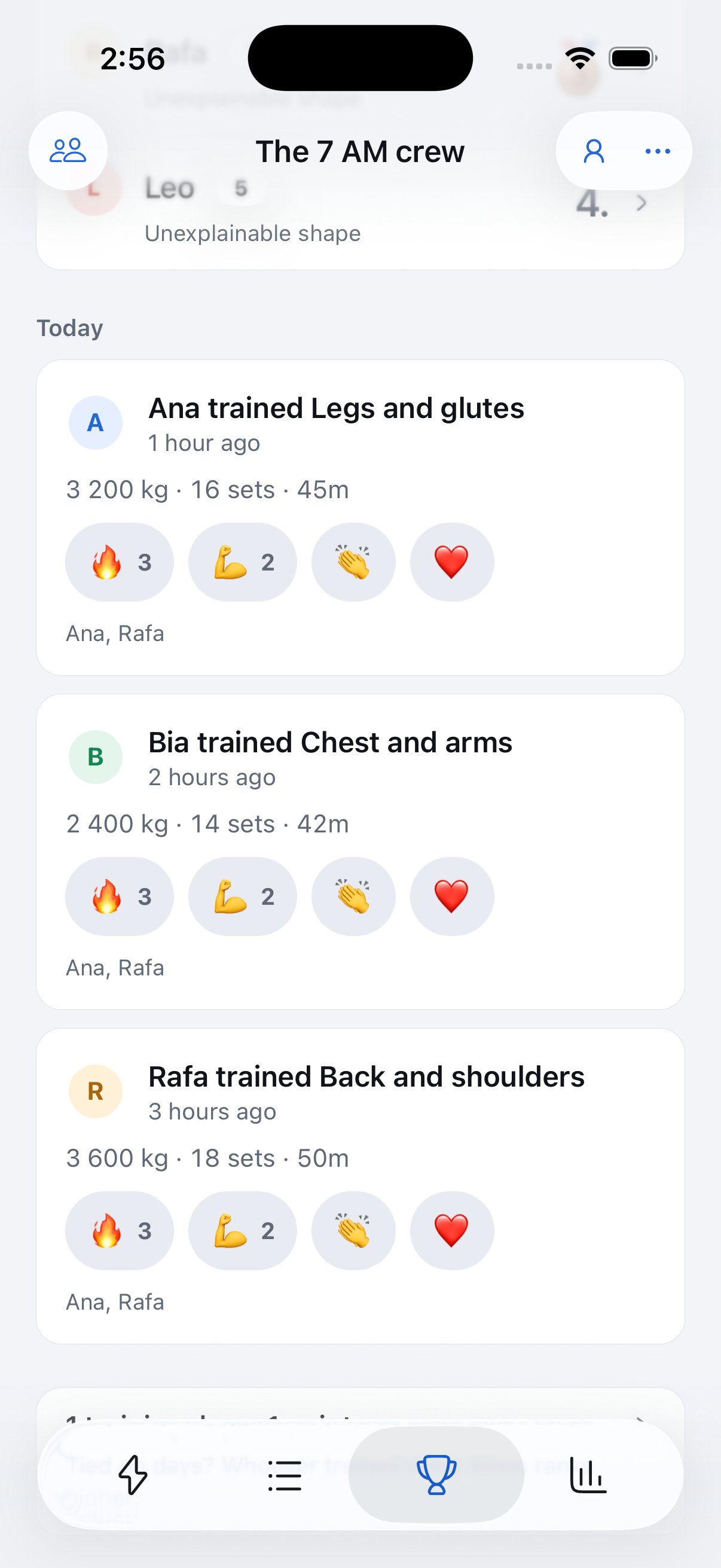
  • Workouts and reactions: See who trained and react to their workouts, even when your gyms or schedules are different.

Where to find it: Open the Challenges tab to create your challenge and invite your friends.

New in happiergym
Insights for your workout

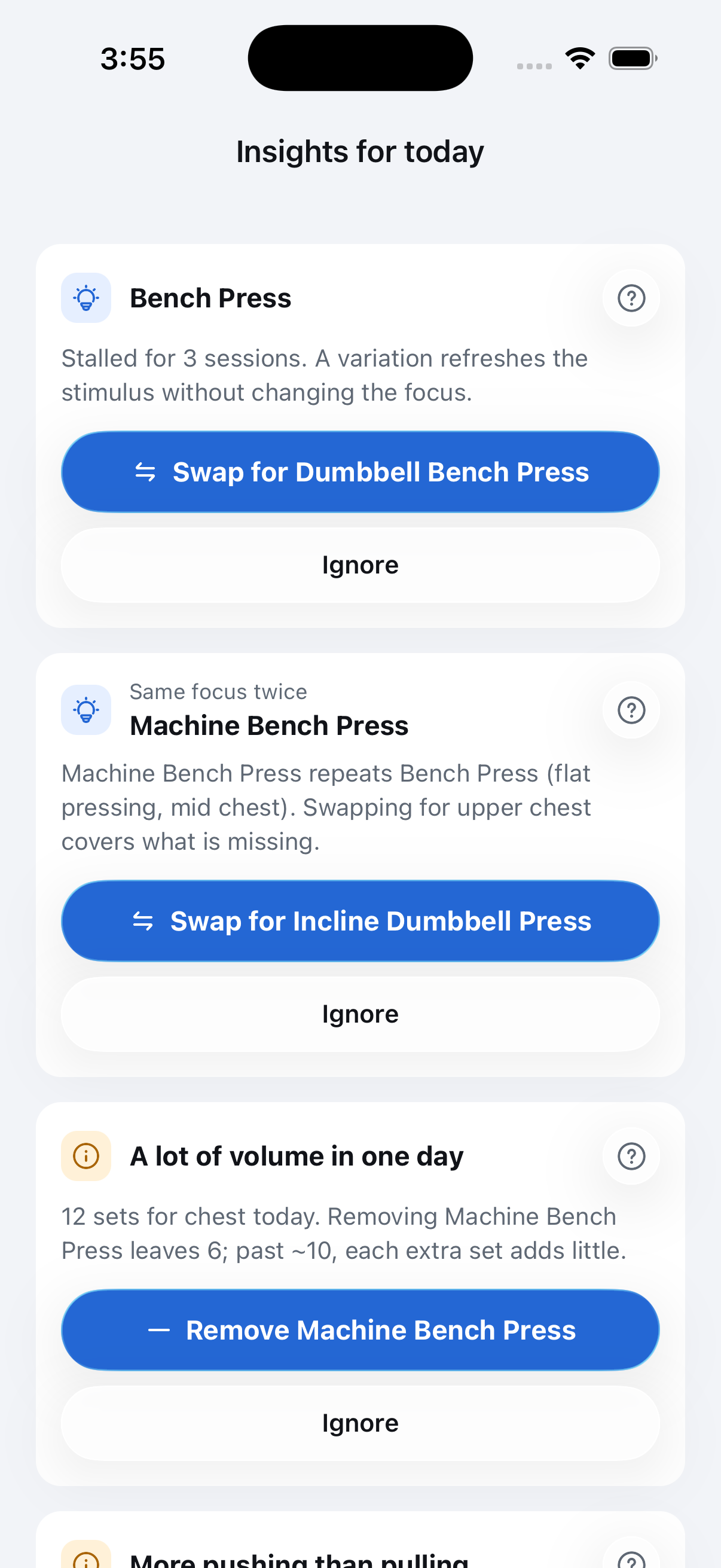
Know what to adjust in your routine. Insights reviews your exercises and training history, then suggests specific changes you can choose to make.

Screenshots use fictional demo data.

  • A closer look at your routine: Spot repeated movement patterns, missing angles, high session volume and the balance between pushing and pulling.
  • Suggestions you can act on: Swap, add or remove an exercise from the insight itself. When progress stalls, see suggested variations for the same movement.
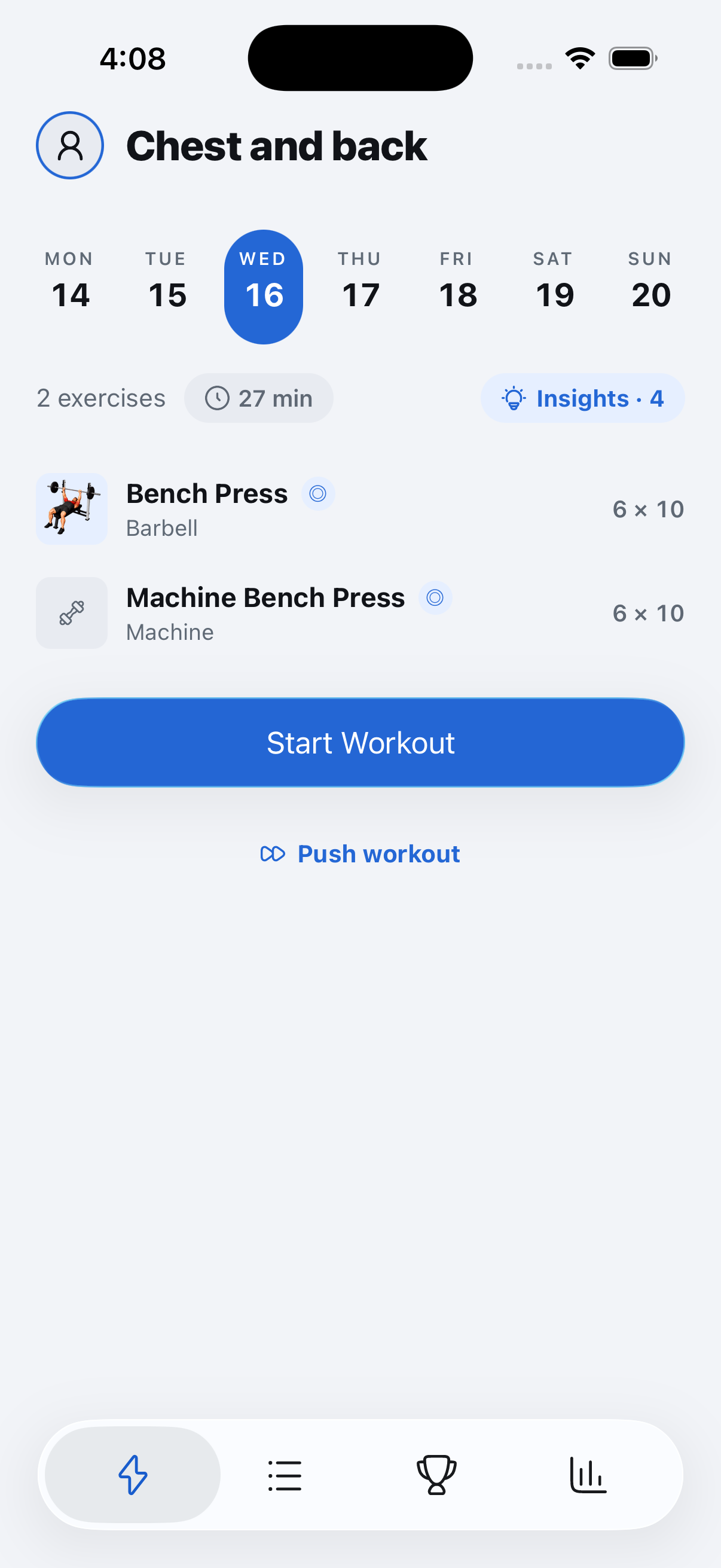
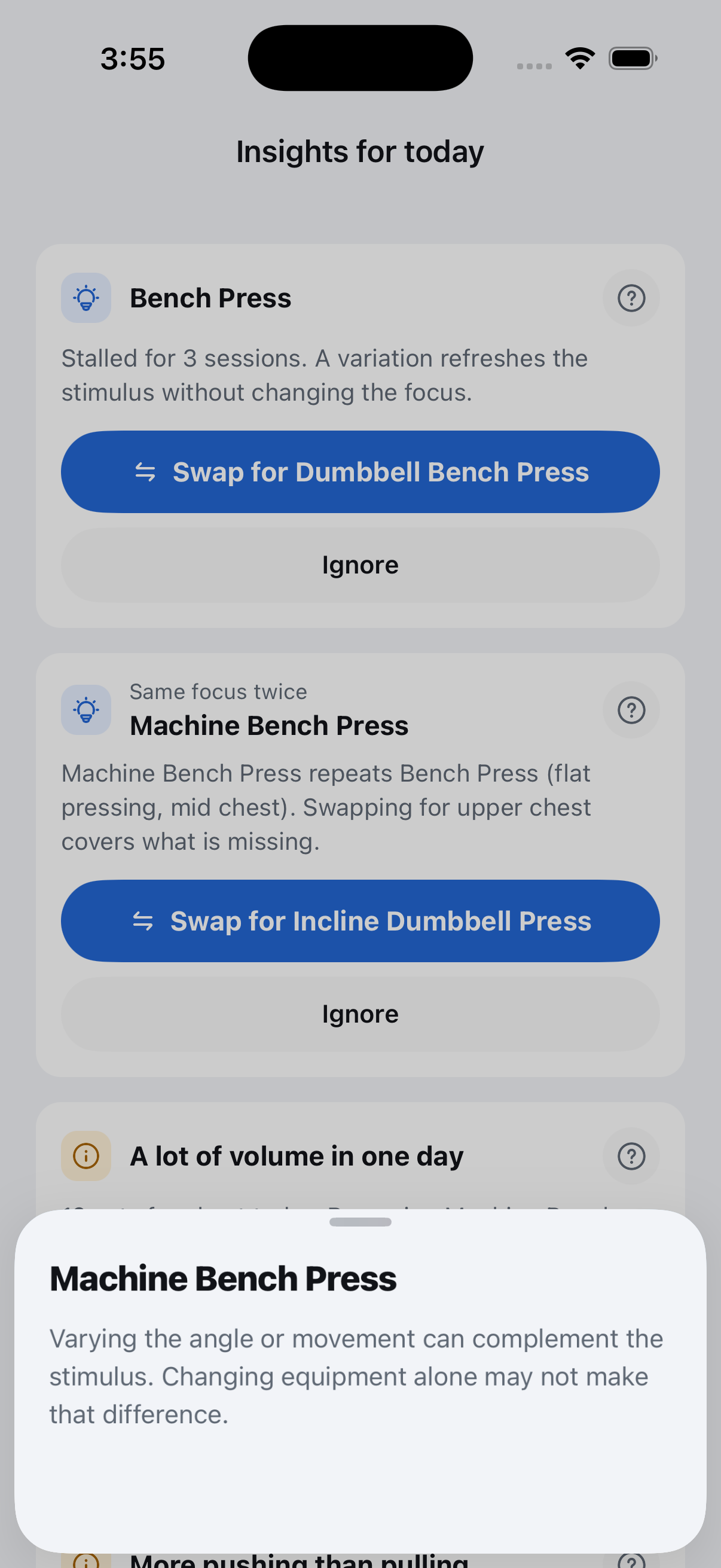
  • The reason behind each suggestion: Tap the question mark to understand the recommendation. You decide what to apply and what to ignore.

Where to find it: Open Insights on Today, while editing a routine day or during a workout. Suggestions appear when there is something to review.